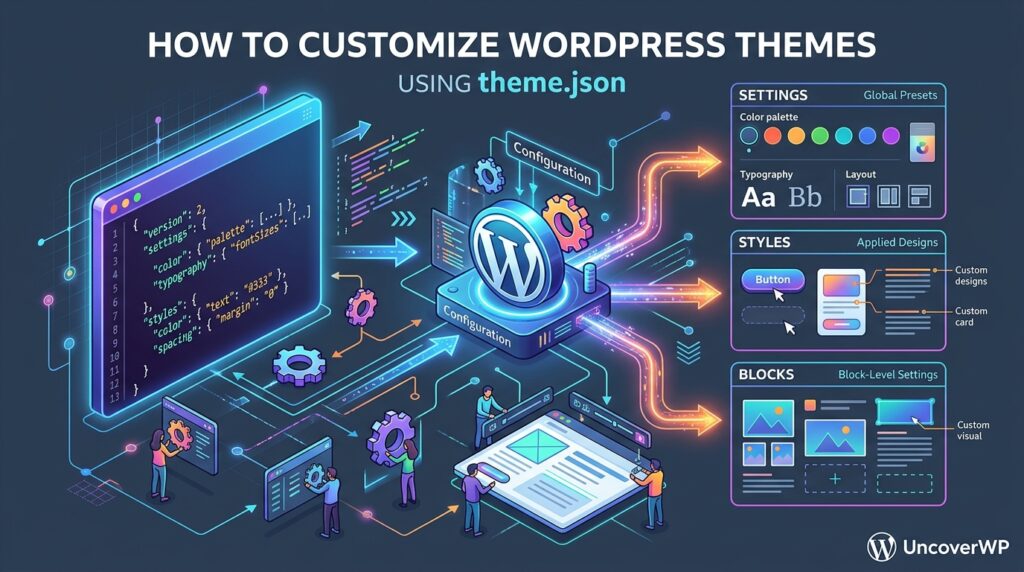
theme.json is a configuration file in a WordPress theme that controls the editor settings and default styles for the whole site and for each block. It sets the color palette, fonts, font sizes, spacing, and content width in one place, and WordPress turns those values into CSS automatically.
Before theme.json, the same design rules lived in scattered CSS and PHP. Now one JSON file defines what editors can choose and how the site looks by default. This guide explains the structure, gives copy-ready examples, and shows how theme.json works with Global Styles and child themes.
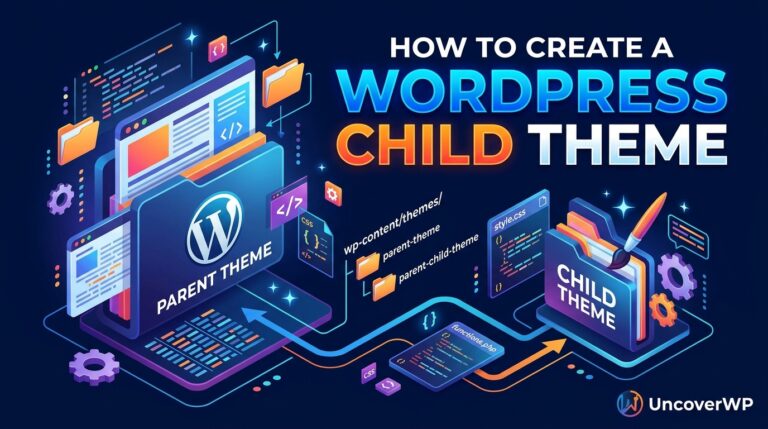
Edit theme.json in a child theme. Changes to a parent theme file are lost on the next update. Our child theme guide shows a minimal child theme.json you can start from.
How theme.json Is Structured
A theme.json file has a few top-level keys. settings decides which options appear in the editor, and styles decides how things look by default.
| Key | What it controls |
| $schema | Links to the official schema so code editors can autocomplete and validate |
| version | The format version. Use 3 for WordPress 6.6 and newer |
| settings | Color palettes, font sizes, spacing scale, layout widths, and which controls editors see |
| styles | Default colors, typography, and spacing for the site, elements, and individual blocks |
| customTemplates | Custom page templates a block theme offers |
| templateParts | Template parts such as header and footer, and where they belong |
| patterns | Patterns from the WordPress.org Pattern Directory to include |
A Starter theme.json File
This file sets a brand palette, two font sizes, and the content width. Each section is explained below.
{
“$schema”: “https://schemas.wp.org/trunk/theme.json”,
“version”: 3,
“settings”: {
“appearanceTools”: true,
“layout”: { “contentSize”: “720px”, “wideSize”: “1200px” },
“color”: {
“palette”: [
{ “slug”: “primary”, “color”: “#1a7f5a”, “name”: “Primary” },
{ “slug”: “dark”, “color”: “#1a1d23”, “name”: “Dark” },
{ “slug”: “light”, “color”: “#f6f7f9”, “name”: “Light” }
]
},
“typography”: {
“fontSizes”: [
{ “slug”: “body”, “size”: “1.05rem”, “name”: “Body” },
{ “slug”: “heading”, “size”: “clamp(2rem, 4vw, 3rem)”, “name”: “Heading” }
]
}
},
“styles”: {
“color”: { “background”: “var(–wp–preset–color–light)”, “text”: “var(–wp–preset–color–dark)” },
“elements”: {
“link”: { “color”: { “text”: “var(–wp–preset–color–primary)” } }
}
}
}
Set Colors and the Editor Palette
Each color in settings.color.palette becomes a swatch in the editor and a CSS variable on the front end. A color with the slug primary becomes –wp–preset–color–primary, which you can use anywhere in your CSS.
To stop editors from picking random colors outside your brand palette, add these lines inside settings.color:
“custom”: false,
“customGradient”: false,
“defaultPalette”: false
Set Fonts and Font Sizes
Font sizes in settings.typography.fontSizes appear as size choices in the editor and become variables such as –wp–preset–font-size–body. Using clamp() values makes headings scale with the screen without extra media queries.
In version 3, your custom sizes no longer replace WordPress’s default sizes when they share a slug. To hide the defaults, set “defaultFontSizes”: false inside settings.typography. The same applies to spacing with “defaultSpacingSizes”: false.
To add a font family, register it under settings.typography.fontFamilies. Host font files inside the theme for speed and privacy instead of loading them from a third-party server:
“fontFamilies”: [
{
“name”: “Inter”,
“slug”: “inter”,
“fontFamily”: “Inter, sans-serif”,
“fontFace”: [
{
“fontFamily”: “Inter”,
“fontWeight”: “400 700”,
“fontStyle”: “normal”,
“src”: [ “file:./assets/fonts/inter.woff2” ]
}
]
}
]
Control Layout Width and Spacing
contentSize is the default width of text and blocks, and wideSize is the width used by blocks set to “Wide width”. Keeping text around 680 to 760 pixels wide keeps lines easy to read.
appearanceTools: true turns on a set of design controls in one line, including margin, padding, border, and block spacing. It is the quickest way to give editors spacing controls without listing each one.
Style Individual Blocks
The styles.blocks key sets default styles for one block type everywhere on the site, without writing CSS selectors. This example gives every Button block rounded corners and the brand color:
“styles”: {
“blocks”: {
“core/button”: {
“color”: { “background”: “var(–wp–preset–color–primary)” },
“border”: { “radius”: “10px” }
}
}
}
Use styles.elements for HTML elements that appear inside many blocks, such as links, headings, buttons, and captions.
How theme.json Works With Global Styles
WordPress merges styles from several sources, and later sources override earlier ones. Knowing the order explains why a theme.json change sometimes seems to do nothing.
| Order | Source | Overrides |
| 1 | WordPress core defaults | Nothing |
| 2 | Parent theme theme.json | Core defaults |
| 3 | Child theme theme.json | Parent theme values |
| 4 | User changes in Site Editor > Styles | Everything above |
[ If a theme.json change does not appear, open Appearance > Editor > Styles, click the three-dot menu, and choose Reset styles. Saved Global Styles in the database override theme.json. ]
Can Classic Themes Use theme.json?
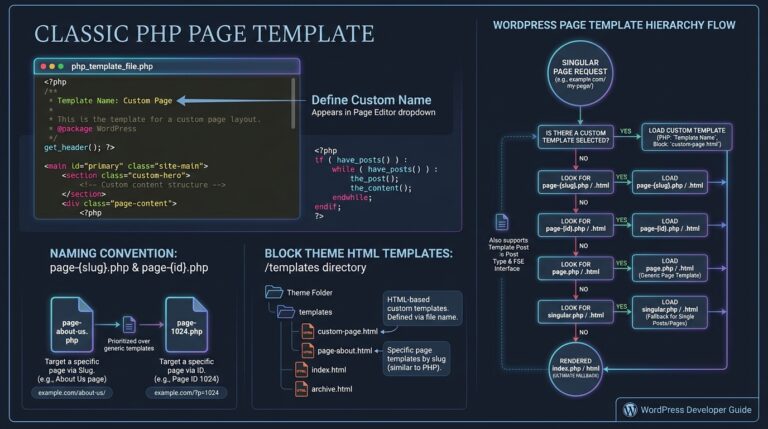
Yes. A classic theme can add theme.json to control the block editor’s palette, font sizes, and layout widths, while the theme keeps its PHP templates. This is a low-risk first step toward block themes, and it makes the editor match the front end. Test after adding it, because theme.json also outputs default styles that can change spacing on existing pages.
theme.json Mistakes to Avoid
- Invalid JSON: one missing comma breaks the whole file, and WordPress silently ignores it. Use a code editor that validates against the $schema.
- Using version 2 options with version 3: read the version 3 changes before switching the version number.
- Hard-coding colors in CSS: use the preset variables so a palette change updates the whole site.
- Loading fonts from Google servers: self-host fonts with fontFace for better speed. Check the effect with our WordPress Speed Test.
Frequently Asked Questions
Where is the theme.json file located?
It sits in the root folder of the theme, next to style.css. Not every theme has one. Classic themes can work without it, while block themes almost always include one.
What is the difference between theme.json version 2 and version 3?
Version 3, added in WordPress 6.6, stops theme font sizes and spacing sizes from automatically replacing the defaults that share their slugs. Version 2 files still work.
Does theme.json replace style.css?
Not fully. A theme still needs style.css for its header information. theme.json handles design settings, and you can still add CSS for things theme.json cannot express.
Why are my theme.json changes not showing?
The most common causes are invalid JSON, saved Global Styles in the database overriding the file, or a cached page. Validate the file, reset styles, and purge your cache.
Can I add custom CSS variables in theme.json?
Yes. Values under settings.custom become CSS variables starting with –wp–custom–, which you can use in your stylesheets and block styles.
Is theme.json good for performance?
Yes, when used well. WordPress generates only the CSS your settings need, and presets replace many hand-written rules. Self-hosted fonts and fewer custom stylesheets help even more.