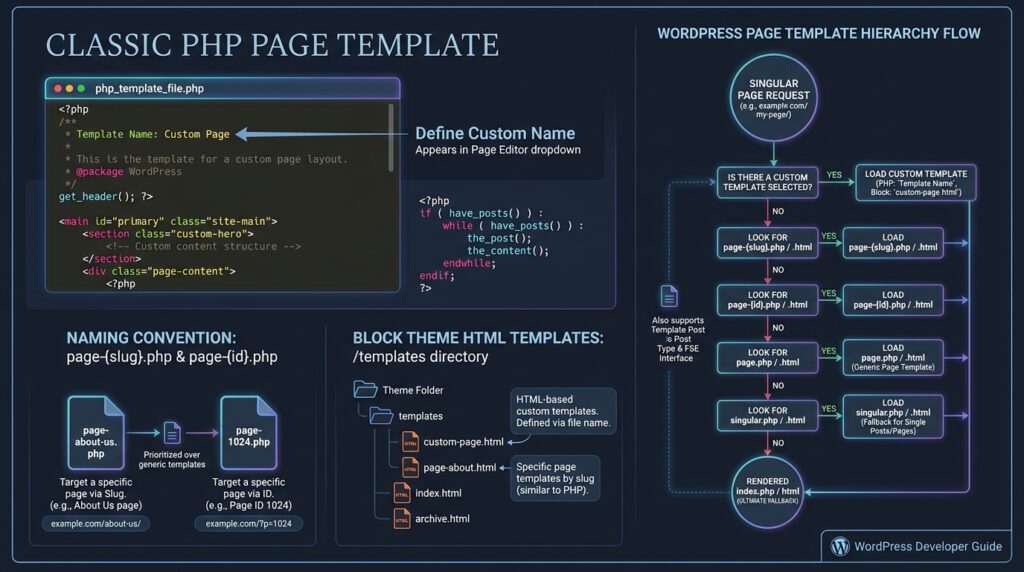
A custom WordPress page template is a theme file that gives selected pages a different layout from the default page design. In classic themes, it is a PHP file with a Template Name header. In block themes, it is an HTML template made of blocks, created in the Site Editor or in the theme’s templates folder.
Page templates let you build a landing page without a sidebar, a full-width sales page, or a contact page with a map, while every other page keeps the normal design. This guide covers both theme types and explains how WordPress picks which template to use.
Build templates in a child theme. Templates added to a parent theme disappear when it updates. Follow our child theme guide first if you have not made one yet.
Three Ways to Create a Page Template
| Method | Theme type | Who can choose it | Best for |
| Template Name file | Classic | Any page you assign it to | Reusable layouts |
| page-{slug}.php file | Classic | One page only, automatically | A single special page |
| Custom template in the Site Editor | Block | Any page you assign it to | No-code layouts in block themes |
How to Create a Page Template in a Classic Theme
Step 1: Create the PHP File
In your child theme folder, create a file with a clear name such as template-full-width.php. Avoid starting the name with page-, because WordPress reserves names like page-about.php for specific pages.
Step 2: Add the Template Name Header
The comment at the top is what turns an ordinary PHP file into a page template. WordPress reads the Template Name line and lists it in the editor.
<?php
/*
* Template Name: Full Width
* Template Post Type: page, post
*/
Template Post Type is optional. Without it, the template is available for pages only. Adding post or a custom post type name makes it available there too.
Step 3: Add the Layout Code
Below the header, add the page structure. This example keeps the theme header and footer, removes the sidebar, and prints the page content full width:
<?php
/*
* Template Name: Full Width
*/
get_header();
?>
<main id=”primary” class=”site-main full-width”>
<?php
while ( have_posts() ) :
the_post();
the_title( ‘<h1 class=”entry-title”>’, ‘</h1>’ );
the_content();
endwhile;
?>
</main>
<?php
get_footer();
The easiest way to match your theme’s markup is to copy page.php from the parent theme, rename it, add the header, and delete the parts you do not want, such as get_sidebar().
Step 4: Assign the Template to a Page
Open the page in the editor. In the right sidebar under Page, click the current template name (usually “Default template”) and choose Full Width. Update the page and view it.
How to Make a Template for One Specific Page
If a layout belongs to one page only, name the file after the page slug and WordPress uses it automatically. A file named page-contact.php applies to the page with the slug contact, and page-42.php applies to the page with ID 42. No header is needed, and nothing appears in the template dropdown.
Slug-based files break if someone changes the page slug, so the Template Name method is safer for pages that editors manage.
How WordPress Chooses a Page Template
WordPress follows the template hierarchy, a fixed order of file names it checks until it finds one that exists. For pages, the order is:
- The custom template assigned in the editor
- page-{slug}.php, for example page-contact.php
- page-{id}.php, for example page-42.php
- page.php
- singular.php
- index.php
A child theme file always wins over a parent file with the same name. Want to see which template a live page uses? The Show Current Template or Query Monitor plugin displays it in the admin bar.
How to Create a Custom Template in a Block Theme
Block themes use HTML templates made of blocks instead of PHP files. You can create a custom template without code in the Site Editor.
- Open the page you want to change in the editor.
- In the Page panel, click the template name and choose Create new template.
- Name it, for example “Landing Page”, and design it with blocks. Keep the Content block so the page text still appears.
- Save. The template is now available for any page in the same dropdown.
Theme developers can ship the template in code instead. Add an HTML file such as templates/landing.html and register it in theme.json:
“customTemplates”: [
{
“name”: “landing”,
“title”: “Landing Page”,
“postTypes”: [ “page” ]
}
]
The name value must match the file name without .html. Templates you change in the Site Editor are saved in the database and override the theme file, so export them with the Create Block Theme plugin if you want them back in code.
Page Template Mistakes to Avoid
- Editing the parent theme: your template is lost on the next update.
- Naming a reusable template page-something.php: WordPress may treat it as a slug template.
- Forgetting the_content(): the editor content will not appear on the page.
- Removing wp_head() or wp_footer(): these run inside get_header() and get_footer(). Without them, plugins, SEO tags, and analytics break.
- Heavy page builder templates: extra layout code can slow down pages. Check the result with our WordPress Speed Test.