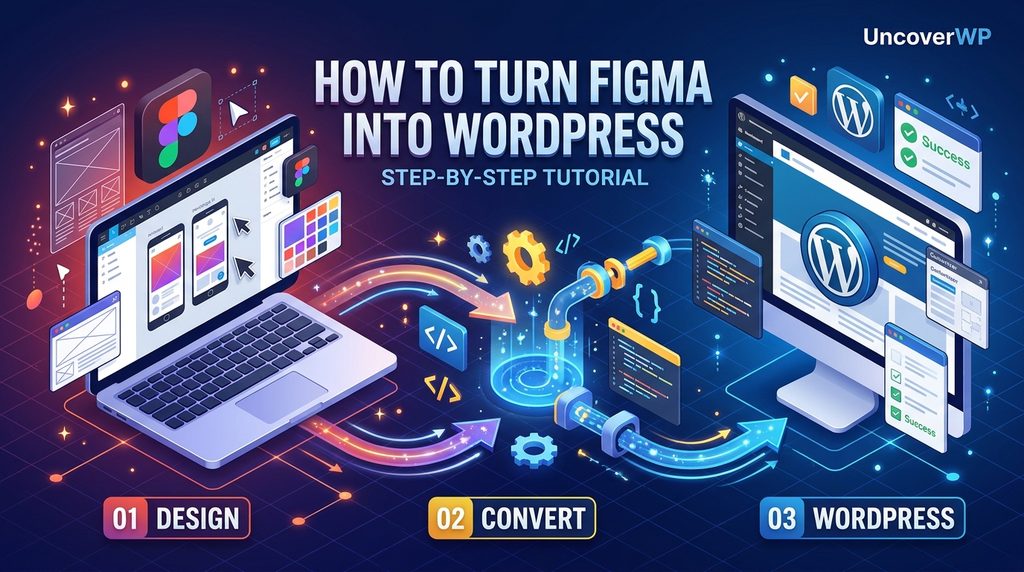
Turning a Figma design into a WordPress website means translating the design’s styles, layouts, and components into a WordPress theme that editors can update without breaking the design. The modern way is a block theme: Figma styles become theme.json settings, page frames become templates, and repeated components become block patterns.
The goal is not a pixel copy of a static picture. It is a working site where an editor can add a new page next month and it still looks like the design. This guide covers the four main methods, then the step-by-step process for the one that holds up best over time.
Study a site you like first. Paste any WordPress site into the free UncoverWP Theme Detector to see the theme and plugins it was built with, so you can judge which approach fits your design.
Four Ways to Convert Figma to WordPress
| Method | Best for | Main drawback |
| Custom block theme | Fast, long-lasting sites that editors manage | Needs theme development skills |
| Existing theme plus customization | Simple designs close to a theme’s layout | Hard to match unique designs exactly |
| Page builder | Teams that want visual editing | Heavier pages and plugin lock-in |
| Figma plugin export tools | Quick prototypes | Generated code is often messy and hard to edit |
This guide follows the custom block theme method. The same planning steps also help if you choose an existing theme or a builder.
Step 1: Prepare the Figma File for Development
A clean Figma file saves hours of guessing. Before any code, check that the design includes:
- Color and text styles, or Figma variables, for every color, font, and size used. Ten brand colors are manageable; forty one-off colors are not.
- A spacing scale, such as 8, 16, 24, 32, 48, and 64 pixels, used consistently.
- Auto Layout on frames, so you can see how sections stack and stretch.
- Mobile and desktop frames for each main template, not desktop only.
- Components for repeated parts, such as buttons, cards, and calls to action.
- States for hover, focus, form errors, and empty states.
Use Dev Mode or the Inspect panel in Figma to read exact values, and export icons as SVG and photos as WebP or AVIF at the size they display.
Step 2: Map Figma Styles to theme.json
Every design token in Figma has a home in theme.json, WordPress’s design settings file. Doing this mapping first means every block on the site uses the same values.
| In Figma | In WordPress theme.json |
| Color styles or color variables | settings.color.palette |
| Text styles (font, size) | settings.typography.fontFamilies and fontSizes |
| Spacing scale | settings.spacing.spacingSizes |
| Frame width and content column width | settings.layout.contentSize and wideSize |
| Button component style | styles.blocks[“core/button”] or styles.elements.button |
| Link color and heading styles | styles.elements.link and styles.elements.heading |
Our theme.json guide shows the exact code for each of these settings.
Step 3: Create the Block Theme
The fastest start is the free Create Block Theme plugin from the WordPress.org team. Install it, open Appearance > Create Block Theme, and create a new blank theme. It gives you style.css, theme.json, and empty template files that you fill in.
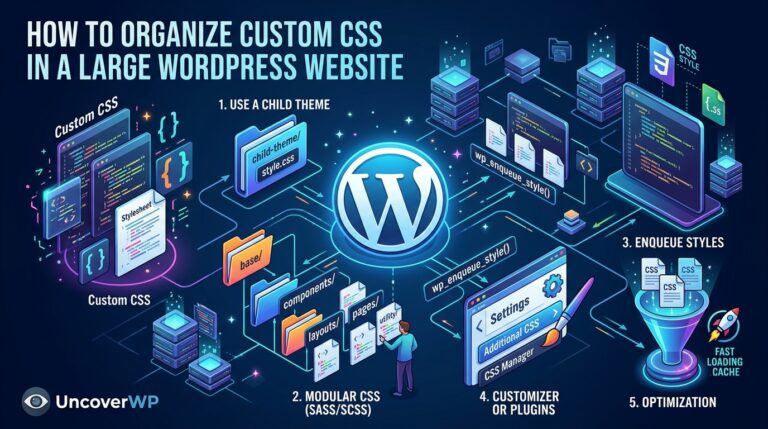
If you prefer to keep an existing block theme as a base, create a child theme instead, as shown in our child theme guide.
Step 4: Build Templates and Template Parts
Each main Figma frame becomes a template, and shared areas become template parts. Build them in the Site Editor under Appearance > Editor:
- Header and footer frames become template parts used on every page.
- Homepage becomes the front-page template.
- Blog post becomes the single template.
- Standard page becomes the page template.
- Blog listing becomes the index or archive template.
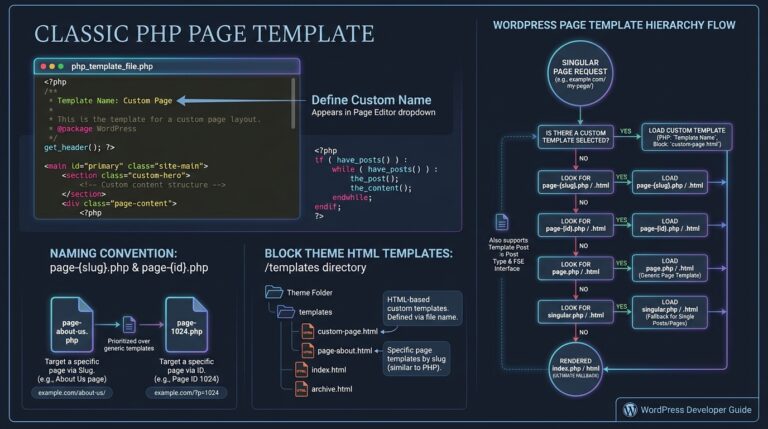
- Special layouts, such as a landing page, become custom templates. See our page template guide.
Build with Group, Row, Stack, Grid, and Columns blocks to recreate Figma’s Auto Layout. Avoid fixed pixel heights, because real content is never the same length as the placeholder text in Figma.
Step 5: Turn Components Into Block Patterns
Figma components such as hero sections, feature grids, testimonials, and pricing tables become block patterns. Editors insert a pattern and change the text and images, and the design stays consistent. Use synced patterns for sections that must stay identical everywhere, such as a newsletter signup.
Step 6: Export the Theme and Test
When the templates and patterns are done, use Create Block Theme to save your Site Editor changes back into the theme files, so the design lives in code and not only in the database. Then test:
- Compare each page side by side with the Figma frame on desktop and mobile.
- Check keyboard navigation, focus states, and color contrast for accessibility.
- Run the homepage and a post through the WordPress Speed Test. Large images and too many font weights are the usual problems.
- Ask an editor to create a new page with your patterns to confirm the design holds up.
Figma to WordPress Mistakes to Avoid
- Designing desktop only: developers then guess the mobile layout.
- Too many font weights and families: each one adds a file to download.
- Placing text inside images: search engines and screen readers cannot read it, and editors cannot change it.
- Hard-coding content in templates: text that changes belongs in the page, not the template file.
- Skipping the editor test: a site that only developers can update is not finished.
Frequently Asked Questions
Can I convert Figma to WordPress without coding?
Yes, with a page builder or a Figma plugin export tool, but the result is often heavier and harder to edit. A block theme built in the Site Editor needs little code beyond theme.json.
How long does it take to turn a Figma design into WordPress?
A five-page brochure site with clean styles often takes a few days. Larger sites with custom features, WooCommerce, or many templates can take several weeks.
Should I use a block theme or a page builder for a Figma design?
Use a block theme when speed and long-term maintenance matter most. Choose a page builder when non-technical editors need full visual control over layouts.
Do Figma plugins create good WordPress code?
They are useful for quick prototypes, but the code they generate is often deeply nested and hard to maintain. Review it carefully before using it on a live site.
What do I need from the designer before development starts?
Ask for color and text styles, a spacing scale, mobile frames, component states, and exported assets. Missing pieces lead to guesswork and design drift.
Can I use Figma variables with WordPress?
Not directly, but each variable maps cleanly to a theme.json preset, such as a color or spacing size. Matching slugs on both sides keeps the design system in sync.