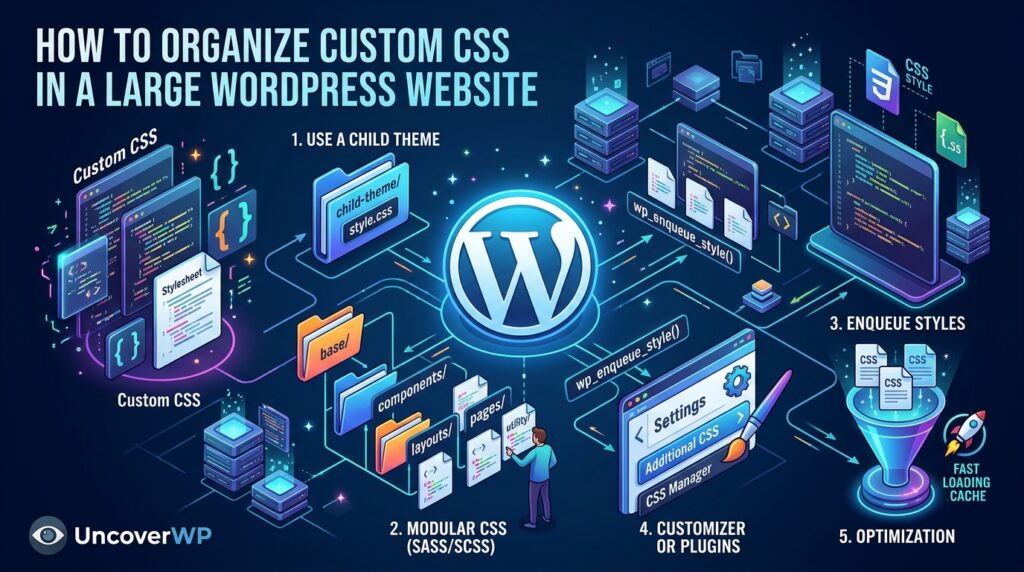
Organizing custom CSS in WordPress means keeping every style rule in one predictable place, split into files by purpose, and loaded only on the pages that need it. On a large site, this is the difference between a change taking two minutes and a change breaking five pages nobody checked.
Most messy WordPress CSS comes from rules added over the years in different places: the Customizer, page builder settings, plugin options, and theme files. This guide shows where CSS should live, a file structure that scales, and how to load it without slowing the site down.
Measure first. Run your homepage through the free UncoverWP WordPress Speed Test. Render-blocking warnings show how much your current CSS delays the first paint.
Where Custom CSS Can Live in WordPress
WordPress offers several places for CSS. Each is fine for a different size of change.
| Location | Good for | Problem on large sites |
| Customizer > Additional CSS (classic themes) | A few quick fixes | One long box with no structure or version history |
| Site Editor > Styles > Additional CSS (block themes) | Small site-wide tweaks | Stored in the database, not in code |
| Per-block custom CSS in Global Styles | Styling one block type | Spread across many screens |
| Page builder or plugin CSS fields | One-off page styles | Hard to find later |
| Child theme or custom plugin CSS files | All serious CSS work | None, if organized |
For a large site, move CSS out of database boxes and into files in a child theme or a small site plugin. Files can be versioned with Git, reviewed, and loaded only where needed.
A Scalable CSS File Structure
Split CSS by purpose, not by the date it was added. This structure works for most large sites:
your-child-theme/
assets/css/
base.css (resets, typography, links, forms)
layout.css (header, footer, containers, grids)
components.css (buttons, cards, alerts, tables)
blocks/
core-button.css
core-quote.css
pages/
pricing.css
landing.css
utilities.css (small helper classes)
Anyone on the team can then guess where a rule lives. A button style goes in components.css, and a rule for one landing page goes in pages/landing.css.
Use theme.json for Design Tokens
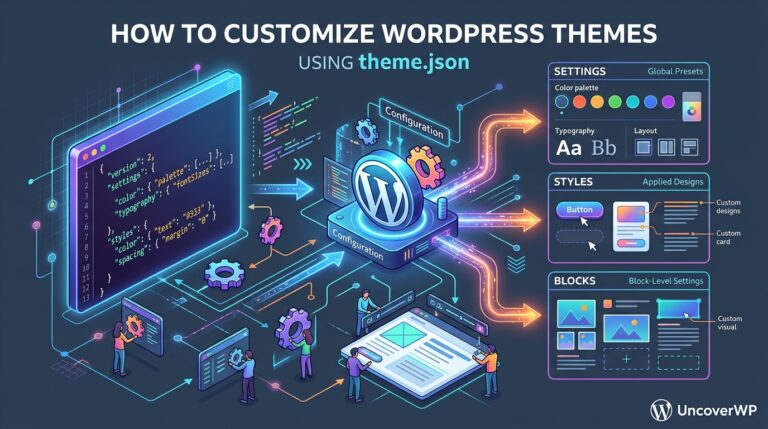
Colors, font sizes, and spacing values should come from theme.json, not from numbers repeated across CSS files. WordPress turns each preset into a CSS variable you can use anywhere:
.card {
background: var(–wp–preset–color–light);
padding: var(–wp–preset–spacing–40);
font-size: var(–wp–preset–font-size–body);
}
Change the color in theme.json and every rule that uses the variable updates. Our theme.json guide shows how to set these presets. Spacing slugs depend on your theme, so check the variable names in your browser’s developer tools.
Name Classes So They Do Not Collide
WordPress core, themes, and plugins all add their own classes. A short prefix and a consistent naming pattern keep your rules from clashing with theirs.
- Use a site prefix, such as .uwp-card instead of .card, so plugin styles never override yours by accident.
- Follow a pattern such as BEM: block, element, and modifier, for example .uwp-card__title and .uwp-card–featured.
- Avoid styling by ID and long selector chains. They are hard to override and make later fixes depend on !important.
- Do not style WordPress’s generated classes, such as wp-container-123, because their numbers change.
Control Priority With Cascade Layers
Cascade layers let you decide which group of styles wins, without fighting specificity. Rules in later layers win over earlier layers, no matter how specific the selectors are. Browser support is now broad in all modern browsers.
@layer base, layout, components, utilities;
@layer components {
.uwp-button { border-radius: 10px; }
}
@layer utilities {
.uwp-hidden { display: none; }
}
One catch: styles outside any layer, which includes most plugin and theme CSS, beat all layered styles. Use layers to organize your own files, and test where they meet plugin styles.
Load CSS Only Where It Is Needed
Loading every stylesheet on every page is the main reason large sites carry unused CSS. Enqueue files conditionally in your child theme’s functions.php:
add_action( ‘wp_enqueue_scripts’, function () {
$dir = get_stylesheet_directory();
$uri = get_stylesheet_directory_uri();
wp_enqueue_style( ‘uwp-base’, $uri . ‘/assets/css/base.css’, array(), filemtime( $dir . ‘/assets/css/base.css’ ) );
if ( is_page( ‘pricing’ ) ) {
wp_enqueue_style( ‘uwp-pricing’, $uri . ‘/assets/css/pages/pricing.css’, array( ‘uwp-base’ ), filemtime( $dir . ‘/assets/css/pages/pricing.css’ ) );
}
} );
Using filemtime() as the version number changes the file URL whenever you edit the file, so visitors and caches always get the new CSS.
For block styles, wp_enqueue_block_style() loads a stylesheet only on pages where that block appears, when the theme loads block styles separately, which block themes do by default:
add_action( ‘init’, function () {
wp_enqueue_block_style( ‘core/quote’, array(
‘handle’ => ‘uwp-quote’,
‘src’ => get_stylesheet_directory_uri() . ‘/assets/css/blocks/core-quote.css’,
‘path’ => get_stylesheet_directory() . ‘/assets/css/blocks/core-quote.css’,
) );
} );
Keep CSS Fast as the Site Grows
- Minify and combine carefully with your caching plugin, such as LiteSpeed Cache or WP Rocket, and test pages after turning it on.
- Remove unused CSS from builders and plugins that load styles on every page, using your caching plugin or an asset manager like Asset CleanUp or Perfmatters.
- Inline only critical CSS, the small set of rules needed for the first screen.
- Audit every few months: search for !important, duplicate rules, and styles for features that no longer exist.
After each cleanup, rerun the WordPress Speed Test and compare the render-blocking results and overall score.
Frequently Asked Questions
Where is the best place to add custom CSS in WordPress?
For small fixes, use Additional CSS in the Customizer or Site Editor. For large sites, put CSS files in a child theme or a small custom plugin so they are versioned and organized.
Does Additional CSS slow down WordPress?
Only slightly. WordPress prints it inline on every page, so a few hundred lines add weight to every request. Move large amounts into cached, conditionally loaded files.
Should I put custom CSS in a child theme or a plugin?
Put design CSS that belongs to the theme in a child theme. Put CSS for features that should survive a theme change, such as a custom form or tool, in a plugin.
How do I stop plugin CSS from overriding my styles?
Load your stylesheet after the plugin’s by listing its handle as a dependency, use a class prefix, and match the plugin selector’s specificity instead of using !important..
Is it bad to use !important in WordPress CSS?
Occasional use is fine for overriding inline plugin styles. Frequent use is a sign of specificity problems, and it makes every future change harder.
How do I find unused CSS on my WordPress site?
Open the Coverage tab in Chrome DevTools to see unused bytes per file, or run a Lighthouse-based speed test, which can flag stylesheets with large amounts of unused CSS.