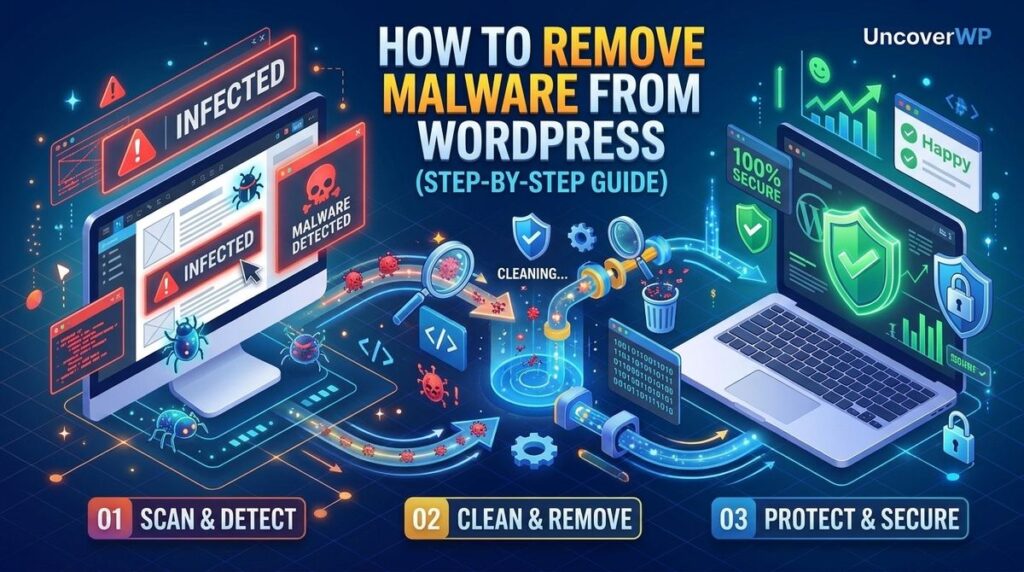
WordPress malware removal is the process of finding injected code across a site’s files and database, deleting it, closing the vulnerability that allowed it in, and clearing the search engine warnings the infection triggered. Deleting the visible symptom is only the first of those four steps, which is why so many cleaned sites get reinfected within days.
Almost every guide on this topic is published by a company selling a malware scanner, and all of them arrive at the same conclusion. This one walks the actual process, tells you honestly where a paid service is the right call, and covers the half that most guides skip: proving the entry point is closed and getting your site delisted.
First, confirm it is actually malware
Not every broken WordPress site is hacked. Before you start deleting files, check whether the symptom matches an infection or a plugin conflict.
Signals that point to a real compromise:
- Your site redirects to an unrelated domain, but only for visitors arriving from search, or only on mobile.
- Pages you never created appear in Google, often in Japanese, or selling pharmaceuticals or replica goods.
- A browser warning or a Search Console security issue notice has appeared.
- There is an administrator account you do not recognise, or an admin password reset you did not request.
- Your host suspended the account or flagged outbound spam.
- Files have modification dates that do not match any update you made.
Signals that usually mean something else:
- A white screen immediately after updating a plugin or theme. That is a PHP error, not malware.
- A single page returning a 404 after a permalink change.
- Slow loading with no other symptom. That is a performance problem.
If you are unsure, a free external scan or a Google Safe Browsing status check will tell you whether the infection is visible from outside. An external scan only sees what is public, so a clean result does not prove the site is clean.
Before you touch anything
Three things, in this order, before any cleanup begins.
- Take a full backup of the site while it is still infected, files and database both. This sounds wrong, but if you delete the wrong file mid-cleanup you need something to return to. Label it clearly as the infected copy so it never gets restored by accident.
- Write down the timeline. When did the symptom first appear, what was the last thing you installed or updated, and when did your host flag it. The infection date narrows down which files to suspect and which backup is safe.
- Decide about taking the site offline. If the site is actively serving malware to visitors or sending spam, maintenance mode limits the damage. If the infection is a hidden backdoor with no visible payload, leaving the site up while you work is usually fine.
Change your hosting panel password, SFTP password and database password now, not later. If credentials were stolen, cleaning the files while the attacker still has access accomplishes nothing.
Clean it yourself, restore a backup, or pay someone
These are the three real options, and the right one depends on your situation rather than your budget.
| Option | Best when | Time | Main risk |
|---|---|---|---|
| Restore a clean backup | You have a backup from before the infection date and little content has changed since | Under an hour | The vulnerability is still there, so reinfection is likely unless you patch it |
| Clean it manually | You have file access, the site is small to medium, and you can read PHP | Two to eight hours | Missing a backdoor and having it return |
| Pay a removal service | Ecommerce, client sites, repeat infections, or a site you cannot afford to get wrong | Usually under 24 hours | Cost, and you still need to patch the entry point afterwards |
A backup restore is the fastest route and the most commonly misused. It only works if the backup predates the infection, and infections often sit dormant for weeks before the payload activates. If your only backup is from after the entry point was created, restoring it brings the backdoor back with it.
Paying is the correct answer more often than DIY guides admit. If the site handles payments, holds customer data, or belongs to a client, the cost of a missed backdoor is far higher than a removal fee.
Where WordPress malware actually hides
Reinfection almost always means a persistence point was missed. These are the locations worth checking, roughly in order of how often they matter.
Core files
WordPress core is the easiest area to clean because every file has a known-good version. Download a fresh copy of your WordPress version and replace wp-admin and wp-includes entirely. Nothing of yours lives in those two directories.
In the root directory, compare your files against the fresh copy. Anything present in your root that is not in the official package deserves inspection.
Themes and plugins
Delete, do not just deactivate, every theme and plugin you are not using. Each one is executable code sitting on your server, and an inactive plugin with a vulnerability is still a file an attacker can reach directly.
For the ones you keep, reinstall them fresh from source rather than trying to clean them. A nulled or pirated theme is a special case: assume it is the infection and remove it entirely. If you are unsure about something you installed, our guide on checking whether a WordPress plugin is safe covers how to vet it properly.
The uploads folder
wp-content/uploads should contain media files and nothing else. A PHP file anywhere in that directory tree is a red flag, because WordPress never puts executable code there. Attackers favour it because the folder is writable by design.
The mu-plugins folder
This is the location most cleanup guides miss, and it is one of the most effective hiding places available. Any PHP file placed in wp-content/mu-plugins runs automatically on every request, with no activation step and no entry on the normal Plugins list.
That combination makes it ideal for a backdoor. Must-use plugins cannot be disabled from the admin area, so they survive the standard “deactivate everything” troubleshooting pass, and they load before regular plugins, which lets malicious code interfere with security plugins as they initialise.
The directory is usually empty or absent on a normal install, so anything inside it deserves scrutiny. Files named to look harmless, such as index.php or wp-index.php, are common.
A useful tell in the admin area: if a “Must-Use” filter appears on the Plugins page and you never installed one deliberately, something put a file there.
.htaccess and wp-config.php
The .htaccess file is where conditional redirects live. This is how a site can redirect only search visitors or only mobile users while looking completely normal to you. Check for redirect rules you did not write, and remember there may be an .htaccess file in subdirectories too, not just the root.
wp-config.php holds your database credentials, so it is a high-value target. Inspect the whole file including anything appended far below the visible content, and change the database password and the security salts once the site is clean.
The database
This is the second commonly missed persistence point. More evasive infections store their payload in the database rather than on disk, typically as a row in wp_options holding a large encoded value, so a file scan finds very little.
A backdoor built this way reinstalls its own file from the database after you delete it, which is exactly what people mean when they say the malware keeps coming back.
Check wp_options for unfamiliar option names with long encoded values, wp_users for administrator accounts you did not create, and wp_posts for injected links or scripts inside post content.
Removing it, step by step
- Take the infected backup and change all passwords, as described above.
- Replace wp-admin and wp-includes with fresh copies from the official WordPress package matching your version.
- Compare root files against the fresh package and remove anything that does not belong.
- Delete every unused theme and plugin. Reinstall the ones you keep from source.
- Search the whole file tree for executable files in places that should hold none, starting with wp-content/uploads.
- Inspect wp-content/mu-plugins and remove anything you did not put there.
- Check every .htaccess file, root and subdirectories, for redirect rules you did not write.
- Inspect wp-config.php end to end, then rotate the database password and regenerate the security salts.
- Search the database for injected content, unknown admin users and suspicious wp_options rows.
- Force a password reset for every remaining user account and revoke any application passwords.
- Scan again, externally and from the server side, and only then call it clean.
When you are inspecting PHP files, the patterns worth looking for are functions used to hide code rather than write it: eval, base64_decode, str_rot13 and gzinflate, particularly when chained together, or code that fetches and runs remote content. Legitimate plugins occasionally use these, so a match is a reason to look closer rather than proof of infection.
Close the door before you celebrate
A cleaned site with the original vulnerability still open gets reinfected, usually within days, often by an automated process that already knows the address.
Work out how they got in:
- Check your host’s access logs around the infection date for unusual POST requests, especially to files in the uploads folder or to plugin endpoints.
- Cross-reference every plugin and theme that was installed at the time against known vulnerability databases. An outdated plugin with a public exploit is the most common entry route by a wide margin.
- Consider stolen credentials. If there is no vulnerable plugin and no file upload hole, the attacker may simply have logged in. Compromised local machines and reused passwords account for a meaningful share of WordPress compromises.
- Check whether other sites share the same hosting account. On shared hosting, one infected site can reach the others, and cleaning one while the neighbour stays infected is a loop you will not win.
If you cannot identify the entry point at all, treat credentials as compromised, rotate everything including hosting and database, and harden file permissions so PHP cannot be written to the uploads directory.
Getting the Google warning removed
If your site was flagged, cleaning it does not automatically clear the warning. You have to ask for a review.
The process, through Search Console:
- Make absolutely certain the site is clean first. Requesting a review while anything remains flagged keeps the site marked for longer.
- Open the Security Issues report and select Request a review.
- Describe what you actually did. Google asks for a short explanation per issue category: what you removed, and which vulnerability you patched. A vague request is more likely to come back unresolved.
On timing, set expectations accordingly. Malware reviews generally take a few days, and the result arrives in your Search Console messages. Reviews for spam-related hacks can take up to several weeks, because they may require manual investigation and reprocessing of the affected pages. Once a review passes, browser and search warnings usually clear within a few days, though the update can lag across different Google systems.
Your host and any third-party blocklists are separate processes. If your host suspended the account, they will have their own re-review request.
Making sure it does not come back
Post-cleanup hardening is what separates a one-time incident from a recurring one.
- Update everything, and keep automatic updates on for security releases at minimum.
- Remove what you do not use. Fewer plugins means a smaller attack surface, and this is the single highest-value habit on the list.
- Vet plugins before installing them. Update history, active installs, support responsiveness and known vulnerabilities all matter more than the feature list.
- Block PHP execution in wp-content/uploads at the server level.
- Enforce strong unique passwords and two-factor authentication on every administrator account.
- Keep off-site backups on a schedule, with enough retention that you still have a pre-infection copy if something sits dormant for a month.
- Set up file change monitoring so the next unexpected modification reaches you before your visitors notice.
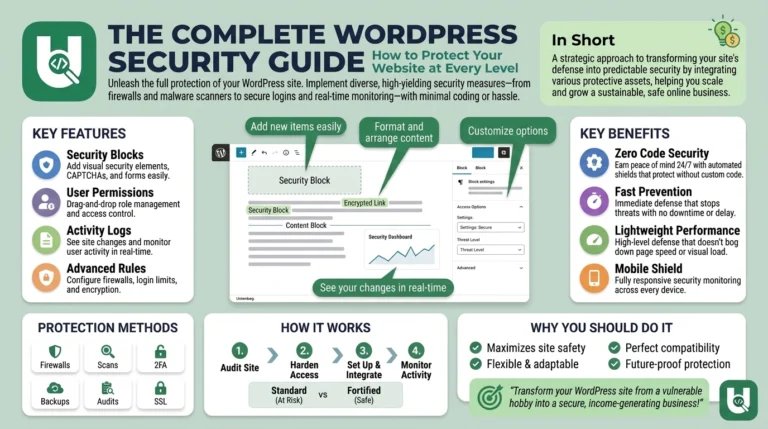
Take a fresh clean backup immediately after the cleanup is verified. That becomes your new known-good baseline. For the wider hardening picture beyond incident response, our complete WordPress security guide covers every layer.
Frequently asked questions
Can I remove WordPress malware without a plugin?
Yes. Manual removal through file access and database inspection works and is how professional cleanups are done. A scanner plugin speeds up detection, particularly for finding modified core files, but it is not required and no scanner catches everything.
Why does my WordPress malware keep coming back?
Because a persistence point was missed or the entry point is still open. The two locations most often overlooked are wp-content/mu-plugins, where files run automatically and cannot be disabled from the admin area, and the database, where a payload can be stored and used to rewrite deleted files.
Will restoring a backup remove the malware?
Only if the backup predates the infection, and only if you patch the vulnerability afterwards. Infections frequently sit dormant before activating, so a backup that looks clean may already contain the backdoor.
How long does it take Google to remove the warning?
Malware reviews usually take a few days. Spam-related hacked site reviews can take several weeks because they may involve manual investigation. After a clean review, warnings typically disappear within a few days.
Is a free scanner enough to confirm my site is clean?
No. External scanners only see what is publicly visible, so they miss backdoors, database payloads and conditional redirects that fire only for search traffic. A clean external result is a good sign, not proof.
Should I delete inactive plugins and themes?
Yes. Deactivated code still sits on your server and can still be reached directly. Deleting unused plugins and themes is one of the cheapest security improvements available.
How did my site get hacked if it is small?
Most WordPress compromises are automated and indiscriminate. Bots scan for known vulnerable plugin versions and weak logins at scale, and they have no interest in how much traffic you get. Being small offers no protection.
When should I pay a professional instead?
When the site handles payments or customer data, when it belongs to a client, when it has been reinfected after a cleanup, or when you cannot confidently identify the entry point. The cost of a missed backdoor on those sites is far higher than a removal fee.