
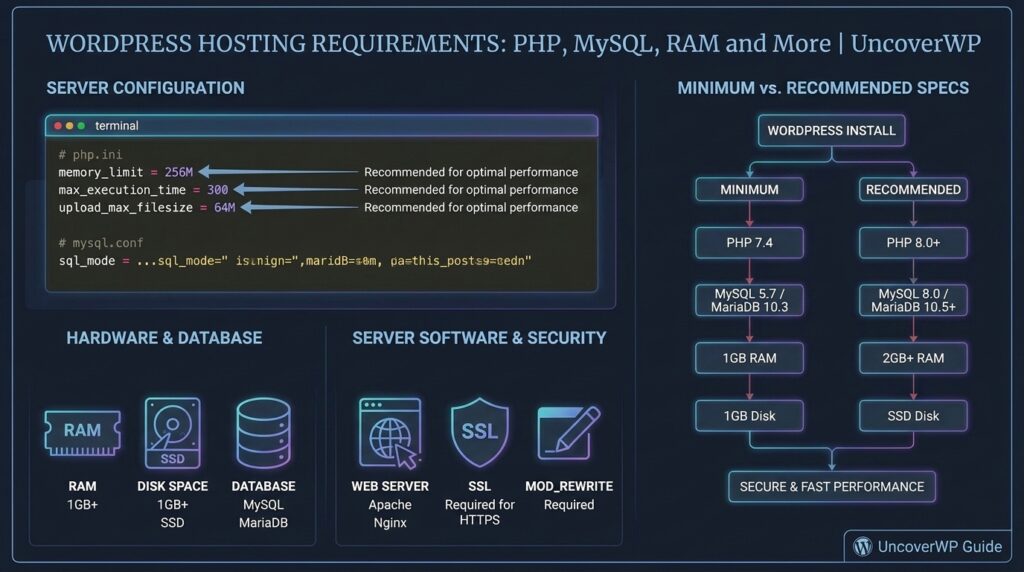
WordPress hosting requirements are the server software versions and resources a host must provide for WordPress to run safely and fast. The core list is short: a supported PHP version, a MySQL or MariaDB database, HTTPS, and a web server such as Apache, Nginx, or LiteSpeed.
The minimum versions only tell you what WordPress will start on. A fast, secure site needs the recommended versions plus enough memory and PHP workers for your traffic. This guide covers both, then shows how to check what your current host gives you.
Test your current host first. Run your site through the free UncoverWP WordPress Speed Test. A slow server response score is the clearest sign your hosting is the bottleneck.
Minimum vs Recommended Requirements
WordPress runs on PHP 7.4 and MySQL or MariaDB 5.5.5 at minimum, but these old versions no longer get security fixes. For a new site, use PHP 8.3 or newer, MySQL 8.4 or MariaDB 10.11 or newer, and HTTPS.
| Software | Minimum (still runs) | Recommended |
| PHP | 7.4 | 8.3 or newer (the WordPress hosting team suggests 8.4 for new installs) |
| MySQL | 5.5.5 | 8.4 (long-term release; 8.0 reached end of life in 2026) |
| MariaDB | 5.5.5 | 10.11, 11.4, or 11.8 (long-term releases) |
| HTTPS | Optional | Required for security, browser trust, and SEO |
| Web server | Any with PHP and rewrite support | LiteSpeed, Nginx, or Apache with mod_rewrite |
These numbers change with each WordPress release. The official WordPress requirements page and the hosting team’s compatibility tables list the current values.
PHP Extensions WordPress Needs
PHP extensions are add-on modules that give PHP extra features. WordPress needs a few to work and uses others for images, security, and speed. Good hosts enable all of these by default.
| Extension | What WordPress uses it for | Needed? |
| mysqli | Talks to the MySQL or MariaDB database | Required |
| json | REST API, block editor, and settings | Required (built into PHP 8) |
| curl | Updates, API calls, and plugin licensing | Highly recommended |
| imagick or gd | Resizing images and creating thumbnails | Highly recommended |
| mbstring | Handling non-English text correctly | Highly recommended |
| openssl | HTTPS requests and secure connections | Highly recommended |
| zip | Installing and updating plugins and themes | Highly recommended |
| intl | Language and number formatting | Recommended |
| OPcache | Caches compiled PHP for faster responses | Recommended |
WordPress shows missing extensions under Tools > Site Health > Status, so you do not need server access to check them.
How Much RAM and CPU Does WordPress Need?
WordPress itself is light, but plugins, page builders, and WooCommerce are not. A useful starting point is a PHP memory limit of 256 MB and enough PHP workers to handle visitors who arrive at the same moment.
| Site type | PHP memory limit | Typical hosting |
| Blog or small business site | 128 to 256 MB | Quality shared or cloud hosting |
| Site with a page builder | 256 MB | Cloud or managed WordPress hosting |
| WooCommerce store | 256 to 512 MB | Managed WordPress or VPS |
| Membership or LMS site | 512 MB or more | VPS or dedicated resources |
PHP workers decide how many uncached requests your server can process at the same time. Cached pages barely use them, but logged-in users, carts, checkout, and search pages do. When every worker is busy, new visitors wait in a queue, and TTFB climbs.
To raise the WordPress memory limit, add this line to wp-config.php above the line that says “That’s all, stop editing”. Your host’s PHP limit must be at least this high, or the line has no effect.
define( ‘WP_MEMORY_LIMIT’, ‘256M’ );
Server Features That Matter More Than Specs
Two hosts with the same PHP version can perform very differently. These features have the biggest effect on speed and safety:
- Server-level page caching: LiteSpeed Cache on LiteSpeed servers or a built-in Nginx cache serves pages without running PHP.
- Object caching: Redis or Memcached speeds up logged-in pages and WooCommerce.
- NVMe or SSD storage: faster database reads than older hard drives.
- HTTP/2 or HTTP/3: loads many small files over one connection.
- Free SSL with auto-renewal: Let’s Encrypt certificates that renew without your help.
- Automatic daily backups: stored off the server, with one-click restore.
- Staging sites: test updates before they touch the live site.
- A data center near your visitors: distance adds delay to every request.
- Easy PHP version switching: lets you move to new PHP versions without a support ticket.
How to Check What Your Host Provides
- Go to Tools > Site Health > Info in your WordPress dashboard.
- Open the Server section to see the PHP version, memory limit, max execution time, and upload size.
- Open the Database section to see whether you run MySQL or MariaDB and which version.
- Check the Status tab for critical issues such as an outdated PHP version or missing extensions.
- Run a speed test on a cached page and an uncached page, such as search results, to see how the server performs under real load.
If Site Health shows an old PHP version, most hosts let you switch it in the control panel under a name like PHP Configuration or Select PHP Version. Test on a staging copy first.
Shared, VPS, or Managed WordPress Hosting?
The right hosting type depends on traffic and how much of your site is uncached, not on how many pages you have.
| Hosting type | Best for | Main trade-off |
| Shared hosting | New blogs and small brochure sites | Resources are shared with other sites |
| Cloud or VPS | Growing sites and developers who want control | You or your host must manage the server |
| Managed WordPress | Stores, agencies, and busy content sites | Higher price and some plugin limits |
Start on good shared or cloud hosting with LiteSpeed or Nginx caching, then move up when uncached pages stay slow or your host warns about resource limits.
Frequently Asked Questions
What PHP version should I use for WordPress?
Use the newest PHP version your host offers that your theme and plugins support, ideally PHP 8.3 or newer. PHP 7.4 still runs WordPress but no longer gets security updates.
Is MySQL or MariaDB better for WordPress?
Both work. MariaDB started as a copy of MySQL and is fully compatible with WordPress. Choose whichever your host runs, as long as the version is current.
Does WordPress need cPanel?
No. cPanel, hPanel, Plesk, and custom dashboards are just control panels for managing hosting. WordPress only needs PHP, a database, and a web server.
Can WordPress run on Windows hosting?
Yes, WordPress can run on Windows servers with IIS, but most hosts and plugins are built and tested for Linux. Linux hosting is the safer choice.
How much storage does a WordPress site need?
A fresh install uses well under 100 MB. Images, backups stored on the server, and log files grow over time, so 10 GB or more of fast SSD or NVMe storage is a comfortable start.
How do I know if my hosting is too slow?
Test a page that cannot be cached, such as a search result. If its server response stays above 1 second with caching enabled for other pages, your host lacks resources.