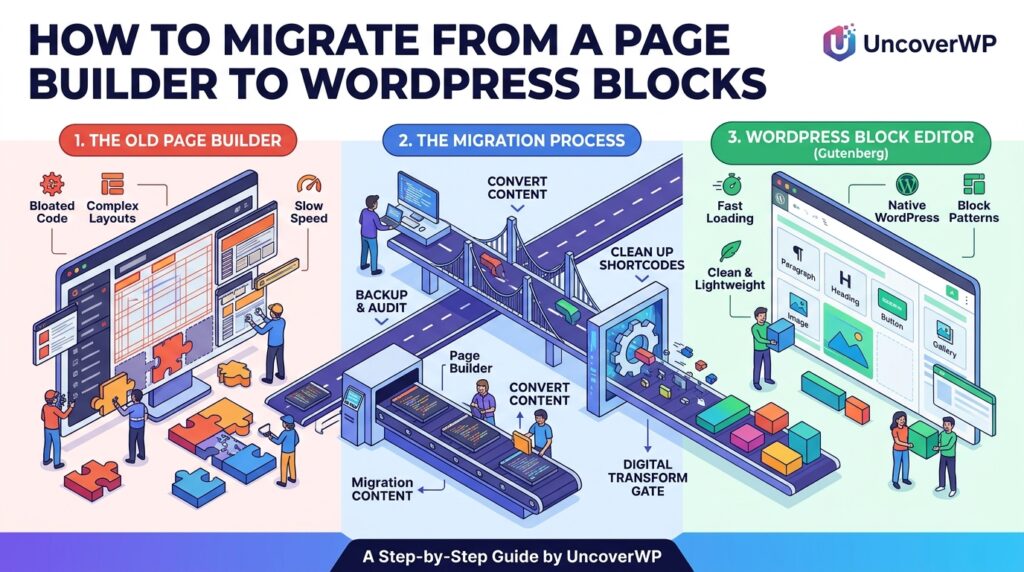
Migrating from a page builder to native WordPress blocks means rebuilding pages made with tools like Elementor, Divi, or WPBakery using the core block editor, then removing the builder plugin. The result is lighter pages, fewer plugin dependencies, and content that does not break when one plugin changes.
There is no reliable one-click converter, because each builder stores layouts in its own format. A careful page-by-page rebuild is the safe path, and it keeps your URLs, content, and rankings intact. This guide walks through the audit, the rebuild, the cleanup, and the checks that prove the migration worked.
Start with a baseline. Run your key pages through the UncoverWP WordPress Speed Test and save the scores. You will compare against them after the migration.
Why Move From a Page Builder to Blocks?
| Factor | Page builder | Native blocks |
| Page weight | Extra CSS, JavaScript, and nested wrapper elements | Can load only the CSS for blocks on the page |
| Lock-in | Layout breaks if the builder is removed | Stored as standard HTML with block comments |
| Updates | Depends on one plugin vendor | Maintained in WordPress core |
| Editing | Separate editor interface | The same editor as posts |
| Cost | Often a yearly license for pro features | Free |
Page builders still make sense for some teams. Move when speed problems, license costs, or editor confusion outweigh the convenience of the builder.
How Page Builders Store Your Content
Knowing where the layout lives explains what happens when you deactivate a builder:
- Elementor saves the layout as JSON data in the post meta field _elementor_data. Deactivating it leaves only the plain text it copied into the post content, without layout or styling.
- Divi (classic builder) and WPBakery save layouts as shortcodes in the post content, such as [et_pb_section] or [vc_row]. Deactivating them leaves those shortcodes visible on the page as raw text.
- Beaver Builder saves layouts in its own post meta and writes a basic HTML copy into the post content.
In every case, deactivating the builder is not a migration. The design is lost, and sometimes the page fills with code.
Step 1: Audit Every Page That Uses the Builder
- List every page, post, and template built with the page builder. Most builders filter or label these in the Pages list.
- Mark each page by priority: pages with search traffic or conversions first, using Google Search Console’s Pages report.
- Note the widgets each page uses, such as sliders, tabs, forms, or pricing tables, and find a block or block plugin that replaces each one.
- Check which add-on plugins only exist to extend the builder, using the UncoverWP Plugin Checker or your Plugins screen. These can be removed after the migration.
Step 2: Set Up a Staging Site and a Block-Ready Theme
Do the rebuild on a staging copy, never the live site. If your current theme was designed only for the builder, switch to a block theme or a classic theme with good block support, and set your colors, fonts, and widths in theme.json first. Our theme.json guide covers the settings that matter.
Setting the design system before rebuilding means every page you create uses the same styles, instead of repeating colors and spacing on each block.
Step 3: Rebuild Pages With Blocks and Patterns
Rebuild one page at a time. Map each builder section to native blocks:
| Builder element | Native block replacement |
| Section or container | Group block with Row, Stack, or Grid layout |
| Columns | Columns block |
| Heading, text, image, button | Heading, Paragraph, Image, Buttons blocks |
| Icon list | List block, or an icon block plugin |
| Tabs, accordions | Details block, or a lightweight block plugin |
| Global header or footer | Template parts in a block theme |
| Reused section (CTA, contact strip) | Synced pattern |
Save repeated sections as synced patterns so you edit them once and the change appears everywhere. Keep the same headings, text, image alt text, and internal links, because changing content and layout at the same time makes it hard to see what affected rankings.
Step 4: Keep URLs and SEO Settings the Same
The URL of each page must not change. Rebuilding inside the same page keeps its URL, SEO title, meta description, and schema in your SEO plugin. If you must create a new page instead, delete the old one and add a 301 redirect from its URL to the new one.
Step 5: Clean Up Leftover Shortcodes and Data
After you rebuild the pages, search the database for builder shortcodes left behind in old posts, widgets, or footers. A search plugin such as Better Search Replace can find them, and running it in dry-run mode first shows matches without changing anything.
To list posts that still contain Divi shortcodes, run this query in phpMyAdmin. Replace wp_ if your table prefix is different, and change the shortcode name for other builders:
SELECT ID, post_title, post_type
FROM wp_posts
WHERE post_content LIKE ‘%[et_pb_%’
AND post_status = ‘publish’;
Once nothing depends on the builder, deactivate and delete it and its add-ons. Some builders offer a setting to remove their data on uninstall; take a full database backup before using it.
Step 6: Test Before and After Launch
- Compare speed scores with your baseline using the WordPress Speed Test. Mobile results usually improve the most.
- Check every rebuilt page on a phone, tablet, and desktop.
- Test forms, buttons, and checkout flows end to end.
- Crawl the site to confirm no internal links return 404 errors.
- Watch Search Console for two to four weeks for drops in clicks on migrated pages.
Frequently Asked Questions
Will I lose SEO rankings if I remove Elementor?
Not if you keep the same URLs, headings, content, and metadata. Rankings drop when pages lose content or URLs change without redirects. Faster pages can even help.
Is there a plugin that converts Elementor to Gutenberg automatically?
Some tools attempt it, but results are usually messy and need manual fixes. Treat any converter as a starting point and check every page before going live.
What happens if I just deactivate my page builder?
Your layouts disappear. Elementor pages show plain unstyled text, and Divi or WPBakery pages show raw shortcodes such as [vc_row] on the front end.
How long does a page builder migration take?
Simple pages take 30 to 60 minutes each once your theme styles are ready. Complex landing pages with custom widgets can take several hours each.