
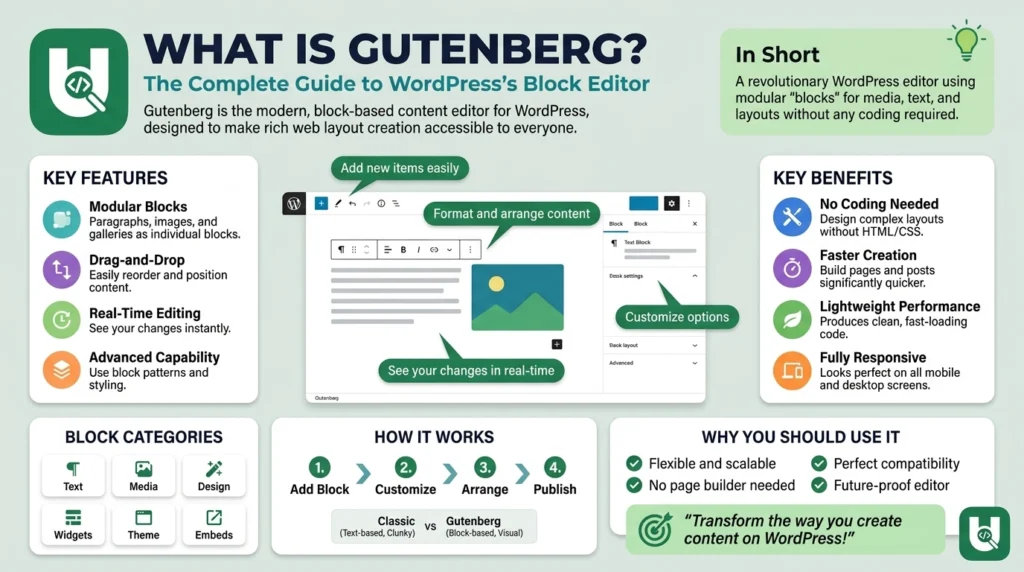
Gutenberg is the block editor built into WordPress, the default way to write posts and pages since WordPress 5.0 launched on December 6, 2018. It replaced the Classic Editor’s single text box with blocks: every paragraph, image, video, and button is its own unit that you can move, style, and edit on its own.
If you have used WordPress for a few years, you lived through this switch. Before Gutenberg, writing a post meant typing into one white box: functional, but limiting. Today the same editor also powers full site editing, block themes, and a growing set of AI and data features.
This guide covers what intermediate WordPress users need to know: how blocks work, the core block library, Gutenberg versus page builders, full site editing, enterprise features, SEO, and practical tips for daily use.
1. What Is Gutenberg?
Gutenberg is the default content editor in WordPress. It replaced the TinyMCE-based Classic Editor with a block-based system that treats every piece of content, whether a paragraph, an image, a video, or a button, as its own self-contained block.
Think of it as a set of building bricks. Instead of one big text box, you stack individual blocks, rearrange them with drag and drop, and configure each one separately. The result is a visual editing experience that lets you build complex page layouts without writing code.
Gutenberg is developed in the open on GitHub as an open-source project, with contributions from the WordPress core team, plugin developers, and theme designers. Posts written in the Classic Editor still open in Gutenberg inside a Classic block, so older content keeps working.
Fun fact: The editor is named after Johannes Gutenberg, the 15th-century inventor of the movable-type printing press. His press made printing accessible to many more people, and the WordPress editor aims to do the same for publishing on the web.
2. Block-Based Editing: How It Actually Works
The core idea behind Gutenberg is simple: everything is a block. When you open a post or page, you get a clean canvas. Each time you press Enter or click the (+) button, you add a new block from the block library.
Every block has its own controls in the right-hand Block Settings panel and in a floating toolbar above the block. You can:
- Rearrange blocks with drag and drop or the up and down arrows
- Duplicate or delete a single block without affecting the rest
- Group blocks so you can move or style them as one unit
- Save blocks as synced patterns and reuse them in any post or page
- Transform one block type into another, for example a paragraph into a heading
Because content and layout live in the same blocks, what you see in the editor closely matches what visitors see on the live site. Designers and developers can split the work: developers build custom blocks, and editors place and configure them without touching code.
The editor is built with React, a JavaScript library. For non-technical users this detail does not matter, but for developers it means Gutenberg works well with modern JavaScript tooling.
3. Core Blocks Library: Your Content Toolkit
Gutenberg ships with a core block library that covers most everyday content needs. These are the blocks every intermediate WordPress user should know.
Text and Structure Blocks
- Paragraph block: the workhorse. Every body-text element is a paragraph block with its own typography and color controls.
- Heading block: choose H2 to H6 and style each heading on its own. Correct heading levels are essential for SEO-friendly structure.
- List block: ordered and unordered lists, with support for nested lists.
- Code block: shows preformatted code in a monospace font, which is essential for developer-focused blogs.
Media Blocks
- Image block: upload an image, pick one from the Media Library, or link to an external image, with alt text and caption support.
- Gallery block: a multi-image grid with adjustable columns and cropping, no plugin required.
- Cover block: a full-width image or video background with text on top, ideal for hero sections.
- Media & Text block: an image or video placed side by side with text in a single block.
- Video and Audio blocks: native upload and embed support for multimedia content.
Layout Blocks
- Columns block: multi-column layouts without a page builder plugin, with automatic stacking on mobile.
- Group and Row blocks: wrap several blocks together to give them a shared background, spacing, or alignment.
- File block: lets visitors download a file directly from your post, with a built-in button.
Block Patterns
Block patterns are pre-designed groups of blocks that form complete sections, such as hero banners, testimonials, pricing tables, or call-to-action areas. You insert a pattern, replace the text and images, and get a professional layout in seconds. Patterns also keep your design consistent across the whole site.
4. Gutenberg vs. Page Builders: Do You Still Need a Plugin?
A common question from intermediate users is whether Gutenberg removes the need for page builders like Elementor and Beaver Builder. Here is a direct comparison:
| Feature | Gutenberg (native) | Elementor / Beaver Builder |
| Cost | Free, included with WordPress | Free versions; advanced features need paid licenses |
| Performance | Lightweight, minimal extra code | Can add significant page weight |
| Learning curve | Same interface as the rest of WordPress | Separate interface to learn |
| Site-wide templates | Yes, through Full Site Editing with a block theme | Elementor Pro Theme Builder; Beaver Themer add-on |
| Plugin conflicts | Low, because it is built into core | Moderate to high, depending on theme and add-ons |
| Theme compatibility | Works with almost every modern theme | Works best with their own or recommended themes |
| Developer ecosystem | Open source, block API, npm packages | Proprietary add-on APIs |
| Reusable content | Synced patterns, free | Global widgets and templates, mostly paid |
For most bloggers and small business sites, Gutenberg alone is enough. Its block library, pattern library, and full site editing have greatly reduced the need for a third-party page builder, which also means fewer license fees and fewer plugin conflicts to manage.
Want to know what a site you admire is built with? Paste its URL into our free WordPress Theme Detector to see its theme and the page builder plugins it loads.
5. Full Site Editing: Gutenberg Beyond the Post
Full Site Editing (FSE) arrived in WordPress 5.9 in January 2022. With a block theme, such as Twenty Twenty-Two or any later default theme, Gutenberg controls your entire website: headers, footers, sidebars, archive pages, search results, 404 pages, and more.
In the Site Editor (Appearance > Editor), you can:
- Edit your main menu with the Navigation block
- Control site-wide typography and color palettes from one place
- Create and manage page templates for different post types
- Design template parts, such as headers and footers, that repeat across the site
- Make layout changes without waiting for a developer
This is a big shift for marketing teams. Instead of waiting for a developer to update the header or build a new landing page template, non-technical team members can make site-wide changes themselves and launch campaigns faster.
Gutenberg also works in headless WordPress setups. In a headless site, content is delivered through the REST API or WPGraphQL to a separate front end built with React or Next.js, while editors keep writing in the familiar block editor.
6. Enterprise Features, AI Integration and Remote Data
Gutenberg has grown beyond visual editing. The WordPress ecosystem now adds AI tools, live data, and enterprise features on top of the core editor.
AI-Assisted Writing
WordPress core does not include an AI writer yet, but plugins add one inside the editor. Jetpack AI Assistant, for example, adds an AI block that drafts, rewrites, and expands content without leaving the dashboard, which cuts the tab switching that slows content teams down.
Remote Data Blocks
Remote Data Blocks is a free plugin from Automattic’s WordPress VIP team that lets blocks pull live data from outside sources and display it in your content. It connects to sources such as Airtable, Google Sheets, Shopify, and custom REST APIs, which turns Gutenberg into a dynamic content platform instead of a static publishing tool.
Content Intelligence
The Parse.ly plugin brings analytics into the editor. Writers can see how earlier articles performed and get suggestions to improve a new article before it goes live, which matters most for news publishers working at speed.
Enterprise Scalability and Security
WordPress VIP, Automattic’s enterprise WordPress platform, runs on the block editor and serves some of the world’s largest publishers and organizations. In 2025 it achieved FedRAMP Moderate authorization, which allows US government agencies to use it. Approval workflows, multisite scaling, digital asset management, and SEO plugin integration make Gutenberg-based WordPress a credible enterprise content management system.
7. SEO-Friendly Publishing Workflow
Gutenberg gives you a real SEO advantage. Its block structure makes it easy to use a proper heading hierarchy (H2 > H3 > H4), add descriptive alt text to every image, and break long content into scannable sections.
The clean HTML that Gutenberg outputs is easier for search engine crawlers to parse than the shortcode-heavy markup of some page builders. SEO plugins such as Yoast SEO and Rank Math also sit directly in the Gutenberg sidebar, so your on-page optimization happens inside the editor.
Responsive design is built in as well. Core blocks stack and reflow correctly on phones and tablets without extra settings, which supports Google’s mobile-first indexing.
8. Getting Started: Tips for Intermediate Users
If you still rely on the Classic Editor plugin, these steps make the move to Gutenberg smooth:
- Start with block patterns. Insert a pattern close to what you need and customize it, instead of building every layout block by block.
- Create synced patterns for elements you use in every post, such as author bios, CTA sections, and disclaimer boxes. Edit one, and every copy updates.
- Use List View. Click the List View icon in the top toolbar (or press Shift + Alt + O) to move through long pages with many nested blocks.
- Keep WordPress updated. Many full site editing features depend on your WordPress version.
- Check plugin compatibility. Older plugins built for the Classic Editor may behave differently, so test them before you remove the Classic Editor plugin.
- Add a block plugin for advanced layouts. Spectra, Kadence Blocks, and GenerateBlocks extend the core library.
Pro tip: Press Ctrl + K (Cmd + K on Mac) to open the Command Palette, added in WordPress 6.3. It lets you insert blocks, jump between pages, and run editor actions from the keyboard.
9. Gutenberg: Pros and Cons at a Glance
| Strengths | Considerations |
| Free and included in every WordPress install | Learning curve for longtime Classic Editor users |
| No coding needed for complex layouts | Some advanced layouts still need a block plugin |
| Removes the need for most page builder licenses | Older plugins may conflict during the switch |
| Full Site Editing controls the whole theme | Full Site Editing requires a block theme |
| Clean, SEO-friendly HTML output | Some third-party plugins lag in block support |
| Fast-moving AI and remote data features | Newest features need the latest WordPress version |
| Open source with an active GitHub community | Documentation can lag behind new releases |
| Responsive blocks out of the box | Custom block development needs React and JavaScript |
Frequently Asked Questions About Gutenberg
Is Gutenberg replacing the Classic Editor permanently?
Yes. Gutenberg is the default editor and the future of WordPress editing. The Classic Editor plugin still works and still receives updates, but new features such as Full Site Editing and synced patterns are built only for the block editor. Switching sooner gives you the full feature set.
Do I need to know how to code to use Gutenberg?
No. Gutenberg is designed for building pages without code. Drag and drop, block patterns, and synced patterns let non-technical users create professional layouts in the browser. Coding only matters if you want to build custom blocks, which most users never need to do.
Can I use Gutenberg with my existing theme?
Almost certainly yes. Most modern WordPress themes support Gutenberg for editing posts and pages. Full Site Editing, however, needs a block theme. With a classic PHP theme, post and page editing works normally, but Site Editor features stay unavailable until you switch to a block theme.
What is the difference between a synced pattern and a block pattern?
A synced pattern, called a reusable block before WordPress 6.3, is a saved group of blocks where editing the original updates every copy, which makes it ideal for CTAs and author bios. A regular block pattern is a starting layout: once inserted, it becomes independent content, so later changes do not affect other pages.
Does Gutenberg work for ecommerce sites?
Yes. WooCommerce includes dedicated blocks for product grids, featured products, the cart, and checkout. With the Remote Data Blocks plugin, a WordPress site can also display Shopify product data inside its content without custom development.
Is Gutenberg suitable for enterprise websites?
Yes. WordPress VIP, Automattic’s enterprise platform, runs on the block editor and serves large publishers and organizations. Approval workflows, FedRAMP Moderate authorization, Parse.ly analytics, Remote Data Blocks, and headless support make it a credible enterprise content management system.
What is the future of Gutenberg?
Gutenberg follows a four-phase roadmap: easier editing (complete), customization through Full Site Editing (largely complete and still improving), collaboration (in progress), and multilingual support (planned). Expect real-time co-editing for teams, more AI tools through plugins, and deeper data integrations.
How can I tell which theme or page builder a website uses?
Paste the site’s URL into the free UncoverWP WordPress Theme Detector. It shows the theme name, author, version, and parent theme, plus plugins such as Elementor or Spectra that load on the front end. If the theme is a block theme like Twenty Twenty-Four, the site can use Full Site Editing.