A safe WordPress plugin is one that is actively maintained, has no unpatched security vulnerabilities, and comes from a trusted source. Checking those three things before you install a plugin takes about 10 minutes and prevents most plugin-related hacks.
Plugins are the most common entry point for attacks on WordPress sites, because every plugin adds code that runs with full access to your site. This guide gives you a step-by-step check, the red flags that mean “do not install”, and a routine for plugins you already use.
See what other sites trust. Paste any WordPress URL into the free UncoverWP Plugin Checker to see which plugins it runs. Plugins used by many well-run sites are a good shortlist to start from.
The 10-Minute Plugin Safety Check
Run these checks in order. If a plugin fails step 1 or step 2, stop and pick another one.
1. Download Only From a Trusted Source
Install free plugins from the official WordPress.org directory, through Plugins > Add New in your dashboard. Buy premium plugins only from the developer’s own website or a known marketplace. Every plugin on WordPress.org is reviewed before it is first listed, and the plugin team can close plugins with security problems.
2. Search Vulnerability Databases
Search the plugin name in at least one public vulnerability database. Each entry shows the affected versions and whether a fix exists.
- WPScan: the WordPress vulnerability database run by Automattic.
- Patchstack: lists vulnerabilities with severity and patch status.
- Wordfence Intelligence: a free vulnerability database from the Wordfence team.
A past vulnerability is not a red flag on its own. Popular plugins get audited more often, so they have more reports. What matters is how fast the developer released a fix. An unpatched vulnerability, especially one rated high or critical, means do not install.
3. Check the Last Update and “Tested Up To”
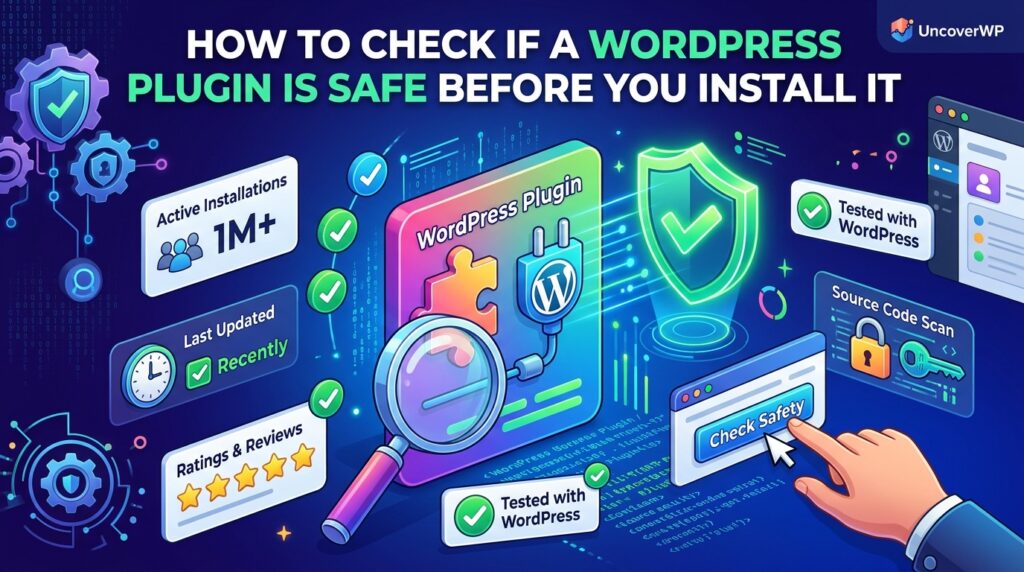
On the plugin’s WordPress.org page, look at Last updated and Tested up to in the sidebar. A plugin updated within the last few months is a good sign. WordPress.org shows a warning when a plugin has not been tested with the last three major WordPress releases, which usually means it is abandoned.
4. Look at Active Installs and Ratings Together
Active installations show how widely a plugin is used, and ratings show whether users are happy. Read the recent 1-star and 2-star reviews, not just the average. Complaints about a broken site after an update or a hacked site tell you more than the star number.
5. Read the Support Forum
Open the Support tab and check how many threads were resolved in the last two months. A developer who answers bug reports quickly will also handle security reports quickly. Many unanswered threads mean the plugin may be unmaintained.
6. Check the Developer
Click the author name to see their other plugins. A developer or company with several maintained plugins, a real website, and a published support or security contact is lower risk than an anonymous account with one plugin.
7. Test on a Staging Site First
Install the plugin on a staging copy of your site, not the live site. Check that pages still load, the admin works, and your speed has not dropped. A plugin that adds many scripts to every page can slow your site even when it is secure, and our WordPress Speed Test shows the difference before and after.
Plugin Safety Signals at a Glance
| Signal | Safer | Riskier |
| Source | WordPress.org or the developer’s site | Free download of a paid plugin |
| Last updated | Within the last few months | Over a year ago |
| Tested up to | Current WordPress version | Warning about 3 major releases |
| Known vulnerabilities | None, or fixed quickly | Unpatched, high or critical |
| Support forum | Most threads resolved | Many unanswered threads |
| Developer | Known company, several plugins | Anonymous, no contact details |
Red Flags: When Not to Install a Plugin
- Nulled plugins: free copies of premium plugins from download sites often contain hidden backdoors or spam links. Never install them.
- Closed on WordPress.org: a notice saying the plugin is closed and not available for download. Closure can be temporary or permanent, but if a security issue is the reason, remove the plugin.
- Unpatched vulnerability: a database entry with no fixed version.
- Requests for unusual access: a simple plugin that asks for your hosting login, FTP details, or admin passwords.
- Encrypted or obfuscated code: code you cannot read is code nobody can audit.
- Ownership changes with sudden new features: plugins are sometimes sold to new owners who add ads or tracking. Read the changelog after a change of ownership.
How to Keep Installed Plugins Safe
A plugin that was safe last month can have a new vulnerability today. These habits keep the risk low:
- Remove plugins you do not use. Deactivated plugins still sit on the server, and some vulnerable files can be reached even while a plugin is inactive.
- Turn on automatic updates for trusted, well-maintained plugins from the Plugins screen.
- Use a security plugin or service that alerts you about vulnerable plugins, such as Wordfence, Patchstack, or Solid Security.
- Take automatic daily backups stored off your server, so you can restore quickly if an update fails.
- Review your plugin list every few months and replace any plugin that stopped getting updates.
Frequently Asked Questions
Are all plugins on WordPress.org safe?
No. WordPress.org reviews plugins when they are first submitted, but later updates can still contain bugs or vulnerabilities. Check update history and vulnerability databases even for official plugins.
How many plugins are too many for WordPress?
There is no fixed number. Security and speed depend on plugin quality, not count. Twenty well-coded plugins can be safer and faster than five poorly maintained ones.
Is it safe to use a plugin that has not been updated in a year?
It is risky. If a vulnerability is found, nobody may fix it. Small plugins with very simple code can stay safe for longer, but look for a maintained alternative.
Can a deactivated plugin still be hacked?
Yes, in some cases. Vulnerable files stay on the server and can sometimes be reached directly. Delete plugins you no longer use instead of only deactivating them.
Why are nulled plugins dangerous?
Nulled plugins are modified copies of premium plugins. They often include malware or backdoors and never get official security updates, so a site that uses them stays exposed.