
WordPress powers more than 40% of the internet. That kind of popularity comes with a downside: it also makes WordPress the most targeted content management system on the planet. Every single day, thousands of WordPress sites get compromised through outdated plugins, weak passwords, exposed login pages, and poorly configured servers.
The consequences are real and painful. You risk Google Blacklisting that wipes out your search rankings overnight. You lose customer trust. You lose revenue. And instead of growing your business, you spend hours on Malware Recovery Planning that could have been avoided entirely.
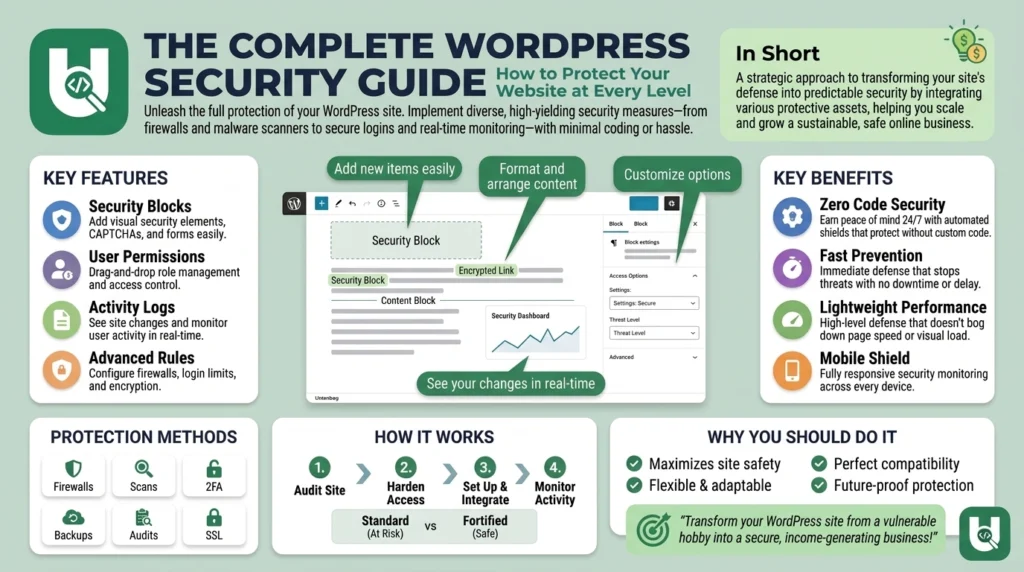
This guide walks you through every layer of WordPress security, starting from the basics like Core Updates all the way to advanced topics like Network Segmentation. By the time you finish, you will have a clear roadmap to build a site that stays online, stays trustworthy, and stays clean.
Part 1: Understanding Why WordPress Security Matters
The Importance of Website Security
When your WordPress site gets hacked, it does not just affect you. Your visitors get exposed to malicious redirects, your reputation takes a hit, and your revenue can drop to zero while you scramble to fix things. Hackers inject spam links for black-hat SEO, steal customer data, and turn your server into a machine for sending phishing emails.
The moment Google finds malicious code on your site, you get added to its blacklist. Recovering from Google Blacklisting Risks is not a quick fix. It can take weeks of cleanup work, documentation, and waiting for Google to review your site again.
Security incidents also cause Website Downtime Prevention failures. For e-commerce sites, even a few hours of downtime can mean hundreds or thousands of dollars in lost sales. If you run WooCommerce, the WooCommerce Security Risks go even deeper, since payment data, customer records, and order histories all become targets.
Every WordPress site, no matter how small, needs a security approach built on three things: preventing attacks, detecting threats early, and recovering quickly when something goes wrong.
Part 2: Keeping WordPress Updated
Regular Core Updates
Keeping your WordPress installation up to date is the single most impactful thing you can do. Regular Core Updates patch known vulnerabilities before attackers can take advantage of them. WordPress releases updates often, and even waiting a few days after a security release can leave your site exposed to exploits that are already being used in the wild.
Turn on Automatic Updates for minor WordPress releases. For major version upgrades, run them on a Staging Environment for Updates first so you can catch any conflicts before they affect your live site.
Plugin Update Management
Plugin Vulnerabilities are the number one cause of WordPress compromises. Since plugins come from thousands of different developers, the quality of their security practices varies a lot. Set a regular Plugin Update Frequency schedule, check for updates at least once a week, and apply security patches right away rather than waiting.
Before you install any new plugin, do some Plugin Reputation Evaluation. Look at the active install count, when it was last updated, how active the support forum is, and whether it has been flagged in vulnerability databases. And never install Nulled Plugins. These are cracked premium plugins distributed for free, and they almost always carry backdoors or malware designed to give attackers a permanent foothold in your site.
Theme Security Updates
Theme Maintenance deserves the same attention as plugin updates. Theme Vulnerability Risks get overlooked all the time. Site owners update their plugins religiously but leave themes untouched for years. Outdated themes, especially ones downloaded from unverified sources, are a common entry point for malware. Apply Theme Security Updates as soon as they are available, and audit any theme you did not buy from a reputable marketplace.
Vulnerability Management and Security Audits
Run periodic Security Audits to get a clear picture of where your site stands. Use tools that do Vulnerability Scanning across your core files, plugins, and themes. Set up Security Monitoring so you get notified when new vulnerabilities are disclosed. A plugin that was perfectly safe last month might get flagged tomorrow.
Part 3: Strengthening Your Login and Authentication
Secure Admin Accounts and Username Hardening
WordPress used to create a default administrator account called “admin” during installation. Attackers still know this, and brute-force bots target it constantly. Using a Secure Admin Username is not optional. Delete or rename any account using “admin,” “administrator,” or anything predictable like your domain name.
The Default Admin Username Risk is straightforward: if an attacker already knows your username, they only need to figure out your password. Admin Username Modification takes about five minutes and cuts the attacker’s job in half. Also make a habit of Administrator Account Auditing to make sure no unauthorized admin accounts have been created without your knowledge.
Strong Password Policies and Password Managers
Weak passwords are still one of the easiest attack vectors to exploit. Enforce Strong Password Policies for every account on your site. Require at least 16 characters with a mix of uppercase, lowercase, numbers, and symbols. Use Password Managers like Bitwarden, 1Password, or Dashlane to generate and store unique, random passwords. Reusing passwords across different services is one of the most dangerous habits in security.
Two-Factor Authentication
Two-Factor Authentication (2FA) adds a second layer of verification on top of your password. Even if an attacker gets hold of someone’s login credentials, they still cannot get in without that second factor, which is usually a time-based code from an authenticator app. Enable 2FA for all admin and editor accounts at a minimum. Plugins like Google Authenticator, Wordfence Login Security, and WP 2FA make this easy to set up.
Limiting Login Attempts and Brute Force Protection
Brute Force Protection automatically blocks IP addresses that fail to log in repeatedly. Without it, bots can try thousands of password guesses per minute with no consequences. Set up Login Attempt Limitation so that after three to five failed attempts, that IP address gets locked out for a set period. This one step alone stops the vast majority of automated attacks.
On top of that, add reCAPTCHA Protection and CAPTCHA Protection to your login form. This makes it much harder for bots to even submit login requests in the first place.
Login URL Protection
Every WordPress site has its login page at the same default location: either /wp-admin or /wp-login.php. Bots continuously scan the entire internet looking for these URLs. Login URL Protection means moving your login page to a custom address that is not publicly known. It does not replace stronger security measures, but it does remove your site from the automated attack pool and keeps your logs much cleaner.
Pair this with Password-Protecting wp-admin at the server level using HTTP authentication. This creates a second password prompt that appears before WordPress even loads.
Security Questions for Login
Adding Security Questions for Login gives you another layer of authentication, which is especially useful on sites where not everyone has set up 2FA yet. It adds friction that slows down unauthorized access attempts, even if it is not a full replacement for stronger authentication methods.
Automatic Idle Logout and Session Management
Automatic Idle Logout closes sessions after a period of inactivity, which is important for shared computers or anyone who forgets to log out. Combined with solid Session Management practices like limiting concurrent sessions and invalidating sessions whenever a password changes, this closes an attack surface that many site owners never think about.
Part 4: Managing User Roles and Access
User Role Management and Least Privilege Access
WordPress comes with five built-in user roles: Subscriber, Contributor, Author, Editor, and Administrator. The principle of Least Privilege Access is simple: every user should only have the permissions they actually need to do their job, and nothing beyond that.
Audit your User Role Management regularly. Remove accounts that no longer need access. Downgrade roles that have been set too high. User Role Restrictions mean that even if a lower-privilege account gets compromised, the damage stays contained.
User Role Permissions and Access Management Controls
Review User Role Permissions carefully to understand what each role can actually do on your site. You can create custom roles using plugins like Members or User Role Editor, which allows for detailed Access Management Controls that fit exactly how your team works. Never assign Editor or Administrator privileges to accounts that only need to read or post content.
Single Sign-On and VPN Access Protection
For teams and businesses, Single Sign-On (SSO) centralizes authentication through a trusted identity provider, which reduces the number of separate credentials that can be compromised. Combine that with VPN Access Protection to make sure admin-level access is only possible from trusted network locations.
IP Allowlisting
IP Allowlisting locks your wp-admin area down to a specific list of trusted IP addresses. Anyone not on that list gets blocked before they even see the login page. For sites with a small, fixed team, this is one of the most effective access controls you can put in place.
Part 5: HTTPS, SSL, and Keeping Data Encrypted
SSL and HTTPS Encryption
Every WordPress site needs to run on HTTPS. HTTPS Encryption protects the data traveling between your visitor’s browser and your server, stopping man-in-the-middle attacks that could intercept login credentials, form submissions, or session cookies. Most hosting providers now offer Free SSL Certificates through Let’s Encrypt, so there is really no excuse not to have this in place.
HTTPS Migration
If your site is still running on plain HTTP, migrating to HTTPS should be a priority. During an HTTPS Migration, update all internal links and media URLs to use HTTPS, set up 301 redirects from HTTP to HTTPS, and make sure your SSL Certificate is configured to renew automatically so it never expires unexpectedly. Plugins like Really Simple SSL can handle a lot of this process for you.
Data Encryption
Beyond encrypting data in transit, think about Data Encryption for sensitive information stored in your database. This matters most for sites that handle personal information, payment data, or health records. Check whether your hosting environment supports encryption at rest and enable it if it does.
Part 6: Firewalls and Network Protection
Web Application Firewall
A Web Application Firewall (WAF) sits in front of your site and inspects incoming traffic, blocking requests that match known attack patterns. It stops SQL Injection, Cross-Site Scripting (XSS), CSRF attacks, and dozens of other exploit types before they ever reach WordPress.
DNS-Level Firewall
A DNS-Level Firewall, like the one offered by Cloudflare, filters out malicious traffic at the network edge before it even reaches your server. The DNS-Level Firewall Benefits include lower server load, protection against large-scale DDoS attacks, and access to a global threat intelligence network that automatically blocks known malicious IP addresses.
Application-Level Firewall and Server-Level Firewall
An Application-Level Firewall works within WordPress itself, inspecting requests at the PHP level. While it is less efficient than a DNS-level option, it gives you WordPress-specific rules and finer control. A Server-Level Firewall on your hosting environment filters traffic before it even touches your application. The best setups combine both layers.
DDoS Protection
A Distributed Denial of Service attack floods your server with so much traffic that it falls over. DDoS Protection from services like Sucuri DDoS Mitigation or Cloudflare absorbs these attacks at the network edge, keeping your site accessible even when someone is actively trying to bring it down.
Network Segmentation
Network Segmentation keeps your WordPress environment isolated from other systems on the same infrastructure. If something does get compromised, containment limits how far the damage spreads. On shared hosting environments, good segmentation means a breach of one account cannot easily move to another.
Part 7: Choosing and Using Security Plugins
Security Plugin Installation
Installing a quality Security Plugin is one of the fastest ways to add multiple layers of protection to your WordPress site. Here are the main options worth knowing:
Wordfence gives you a powerful Wordfence Firewall Protection engine, real-time malware scanning, login security features, and detailed Security Activity Logging. Its threat intelligence feed updates firewall rules continuously based on attacks detected across millions of sites.
Sucuri Security focuses on File Integrity Monitoring, post-hack recovery tools, and cloud-based Sucuri DDoS Mitigation. Its WAF operates at the DNS level, which is great for performance.
MalCare specializes in fast automated malware detection and MalCare One-Click Cleanup, which makes it one of the quickest paths from an infected site back to a clean one.
Many sites benefit from using more than one tool. For example, you might use Sucuri’s WAF alongside Wordfence’s login security features.
Part 8: Scanning For and Removing Malware
Malware Scanning and Detection
Schedule Malware Scanning to run daily through your security plugin. Automated Malware Detection compares your core files against verified checksums, looks for suspicious code in plugins and themes, and checks for known malware signatures. Do not wait until something looks wrong to start scanning. By the time you notice symptoms, the damage has usually already been done.
File Integrity Monitoring
File Integrity Monitoring tracks every change to your WordPress files and alerts you immediately when something is added, modified, or deleted. This is one of the earliest warning signs available because malware almost always writes or changes files when it installs itself.
Manual Malware Cleanup
If your site gets infected, Manual Malware Cleanup means downloading all your site files and the database, scanning them locally, removing malicious code line by line, reinstalling clean versions of WordPress core and all your plugins and themes, and then hardening the site to stop the same attack from happening again. It takes time and requires technical knowledge.
Professional Malware Removal Services
If you are not comfortable doing a cleanup yourself, or if the infection is severe, Professional Malware Removal Services from companies like Sucuri, Wordfence, or MalCare are worth the investment. They offer expert cleanup with guarantees and can get your site back online much faster than going it alone.
Automatic Malware Removal
Automatic Malware Removal, available through MalCare and similar platforms, can detect and clean many types of infections without you having to do anything manually. It is not the right solution for every situation, but it provides a fast first response that can contain damage before things escalate.
Part 9: Backups Are Your Safety Net
Website Backup Strategy and Daily Backups
A reliable backup is what stands between you and total disaster. Without a recent, clean backup, recovering a compromised or broken site can be nearly impossible. Build a Website Backup Strategy that includes Daily Backups of both your database and all your site files.
Off-Site Backup Storage
Never store your backups on the same server as your WordPress installation. If the server gets compromised, your backups go down with it. Use Remote Backup Storage and Off-Site Backup Storage solutions like Amazon S3, Google Drive, Dropbox, or Backblaze. Offsite Backup Storage also means your backups survive even a complete server failure.
Testing Your Recovery Plan
Your Backup Strategy should clearly define how often backups run, how many versions you keep, where they are stored, and how long a restoration actually takes. Test your restore process regularly. A backup you have never restored is a backup you cannot trust. Build backup and restoration testing into your Recovery Planning and Malware Recovery Process documentation so your whole team knows what to do in an emergency.
Part 10: Hardening Your Files and Server
File Permissions
Incorrect File Permissions are a common misconfiguration that attackers know how to exploit. WordPress recommends 644 for files and 755 for directories. Your wp-config.php file, which holds your database credentials, should be set to 600 so only the server process can read it.
Disabling File Editing
WordPress has a built-in code editor in the dashboard that lets you edit theme and plugin files directly. If an attacker ever gains admin access, that editor becomes an open door to running malicious code on your server. Disabling File Editing by adding define('DISALLOW_FILE_EDIT', true); to your wp-config.php file removes this risk entirely.
PHP Execution Restrictions
PHP Execution Restrictions prevent attackers from uploading PHP files to writable directories like /wp-content/uploads/ and then running them. Adding a simple .htaccess rule to deny PHP execution in your uploads folder eliminates a whole class of file-upload attacks.
Disabling Directory Browsing
Disabling Directory Browsing stops visitors from seeing the file contents of any directory that does not have an index.php file. Without this, attackers can map out your file structure, identify which plugins and themes you are running, and look for known vulnerable versions.
Database Protection and Database Prefix Customization
Database Protection starts with Database Prefix Customization. By default, WordPress uses wp_ as the prefix for all database tables. Changing this to something random during installation makes SQL injection attacks that target default table names much less effective.
Use a strong, unique database password, restrict database user permissions to only what WordPress actually needs, and never expose your database to connections from the public internet.
Part 11: Advanced Security Configurations
XML-RPC Security
XML-RPC is a WordPress feature designed for remote publishing and app communication. Over the years it has been heavily abused for brute-force attacks, DDoS amplification, and security bypass attempts. The XML-RPC Security Risks far outweigh the benefits for most sites. Unless you have a specific integration that depends on it, disable XML-RPC entirely.
SQL Injection Prevention and XSS Protection
SQL Injection Prevention means sanitizing all user input, using WordPress’s prepared statement API through $wpdb->prepare(), and validating data types before anything reaches the database. A WAF adds an automated protection layer on top of this.
Cross-Site Scripting (XSS) Protection requires properly escaping all output in your theme and plugins using WordPress functions like esc_html(), esc_attr(), and wp_kses(). XSS attacks inject malicious scripts into your pages that then run in your visitors’ browsers, stealing session cookies, defacing content, or redirecting users to harmful sites.
Authorization Bypass and Information Disclosure
Authorization Bypass vulnerabilities let attackers do things they should not be able to do, like accessing private posts, running admin functions, or changing data they have no permission to touch. Review your plugins for proper capability checks on every sensitive operation.
Information Disclosure happens when your site leaks details it should not, like your WordPress version number, internal file paths, usernames, or server configuration details. Disable the version number from your header and RSS feed, turn off PHP error output in production, and remove the readme.html file from your root directory.
Security Headers
Security Headers are HTTP response headers that tell browsers how to behave when loading your site. The important ones for WordPress include X-Frame-Options to prevent clickjacking, X-Content-Type-Options to stop MIME-type sniffing, Content-Security-Policy to control which external resources can load, and Strict-Transport-Security to enforce HTTPS connections. You can add these through your .htaccess file, your nginx configuration, or a plugin like HTTP Headers.
Third-Party API Security
Third-Party API Security has become more important as WordPress sites connect to more outside services: payment gateways, CRMs, marketing platforms, and analytics tools. Each of these connections is a potential attack surface. Rotate API keys on a regular schedule, use the minimum permissions needed for each key, store keys in environment variables rather than hardcoded in your files, and periodically audit which integrations are still active.
Part 12: Your Hosting Environment
Choosing a Secure Hosting Provider
Your hosting provider is your first and most important security partner. A Secure Hosting Provider should offer server-level firewalls, automatic malware scanning, DDoS protection, isolated hosting accounts, and responsive support when problems come up. Managed WordPress Hosting from providers like WP Engine, Kinsta, or Cloudways goes even further, bundling automatic core updates, daily backups, staging environments, and security monitoring into the service.
Shared Hosting Security Risks
Shared Hosting Security Risks are real and often underestimated. When multiple customers share the same server, a compromised neighboring account can potentially affect yours. Moving to a VPS, dedicated server, or managed WordPress host eliminates that neighbor risk and gives you much more control over your environment.
Cloudflare CDN Security
Cloudflare CDN Security puts your site behind a globally distributed network that caches content, hides your origin server’s real IP address, and filters out malicious traffic before it ever gets close to your server. Cloudflare’s free tier already includes basic WAF and DDoS protection, and paid plans add advanced rule sets and bot management.
Part 13: Monitoring, Logging, and Incident Response
Security Activity Logging and Access Logging
Security Activity Logging and Access Logging give you a complete record of what happens on your site: login attempts, user actions, file changes, plugin activations, and settings changes. This data is invaluable when you need to investigate an incident, and it helps you spot suspicious patterns before they turn into a serious problem.
Plugins like WP Activity Log keep detailed, tamper-resistant logs. Store your logs off-site so an attacker cannot delete them to cover their tracks.
Security Monitoring and Proactive Threat Monitoring
Security Monitoring and Proactive Threat Monitoring keep you informed in real time. Set up alerts for spikes in failed logins, the creation of new admin accounts, changes to core files, and unexpected plugin or theme installations. The faster you catch something unusual, the less damage it causes.
Site Traffic Drop Detection
Site Traffic Drop Detection is an indirect but important security signal. A sudden, unexplained drop in organic traffic is often the first visible sign of a Google penalty or blacklisting, both of which can result from malware or injected SEO spam. Keeping an eye on your Google Search Console and analytics dashboards as part of your regular security routine can help you catch these problems early.
Incident Response
Incident Response planning means deciding in advance what you will do when something goes wrong. Write down the steps for isolating a compromised site, resetting all credentials, restoring from backup, cleaning up malware, figuring out how the attack happened, and closing the vulnerability that was exploited. Go through this plan before you actually need it. The faster you can respond to an incident, the less damage it causes.
Part 14: Protecting Your SEO and Visitor Trust
SEO Protection From Hacks
One of the most common ways hackers misuse compromised WordPress sites is by injecting hidden links and spam content. This SEO spam can include hidden Japanese keyword injections or pharma-related content, which boosts the attacker’s rankings while destroying yours. SEO Protection From Hacks means scanning regularly for injected content, watching for unexpected changes in your keyword rankings, and keeping a close eye on your Google Search Console for coverage errors or manual actions.
Customer Trust Signals
Customer Trust Signals like your SSL padlock, trust badges, privacy policy, and clean appearance in Google search results can be destroyed in an instant by a single malware incident. It can take months to rebuild the trust you lose after a breach. Think of security not just as an IT concern but as a direct investment in protecting everything your marketing and brand-building work has created.
Spam Form Protection
Spam Form Protection on your contact, registration, and comment forms keeps bot-generated spam out of your inbox, protects your email sending reputation, and blocks credential-stuffing attempts through registration pages. Use reCAPTCHA v3, honeypot fields, or dedicated anti-spam plugins like Akismet to keep your forms clean.
Part 15: Building a Regular Security Routine
Making Security a Habit
Security is not something you configure once and forget. It needs to be a regular practice. Build the following Security Maintenance Routine and Weekly Maintenance Routine into how you manage your site:
Daily (run these automatically):
- Malware scans
- Uptime monitoring
- Backup verification
- Login attempt monitoring
Weekly (review manually):
- Check for WordPress core, plugin, and theme updates
- Review security plugin alerts and log entries
- Scan for newly disclosed vulnerabilities in your installed software
- Review user accounts and access levels
- Check Google Search Console for manual actions or coverage issues
Monthly:
- Perform a full Security Audits review
- Rotate API keys and service account passwords
- Run a test restore from your most recent backup
- Review and update your Incident Response plan
- Audit all active third-party integrations
Quarterly:
- Commission a penetration test or professional vulnerability assessment
- Review your hosting environment and server configuration
- Update and rehearse your Recovery Planning documentation with your team
Conclusion: Security Is Something You Do, Not Something You Buy
No single plugin, firewall, or configuration will make your WordPress site completely unbreakable. The sites that stay safe are the ones where security is treated as an ongoing practice rather than a one-time setup. That means regular updates, layered defenses, consistent monitoring, and a clear plan for when things go wrong.
Start with the highest-impact steps first: update everything, enable two-factor authentication, install a WAF, set up daily backups, and lock down your login page. Then work through the rest of the layers in this guide at a steady pace.
Every control you add makes your site a harder target. Every attacker is looking for the easiest path in, so make sure that path does not go through you.
Your website is worth protecting. Start building those habits today.
Frequently Asked Questions About WordPress Security
1. How often should I update my WordPress plugins and themes?
You should check for updates at least once a week and apply them as soon as they are available. Security patches in particular should never be delayed. Many site owners set minor core updates to install automatically, which is a smart move. For plugins and themes, a weekly manual review gives you control while keeping things reasonably current. If a critical vulnerability is disclosed for a plugin you are using, update it the same day you find out, regardless of your normal schedule.
2. What is the most common way WordPress sites get hacked?
Outdated plugins are the leading cause by a significant margin. When a vulnerability is discovered in a popular plugin, attackers scan the entire internet for sites still running the old version and exploit them at scale. Weak or reused passwords are the second most common entry point, followed by compromised admin credentials from data breaches on other platforms. Nulled plugins and themes, which carry hidden malware by design, are also a frequent culprit that many site owners do not suspect until it is too late.
3. Do I really need a security plugin if my hosting provider already offers security features?
Yes, and here is why. Hosting-level security and a WordPress security plugin protect different layers of your site. Your host secures the server environment, while a security plugin like Wordfence or MalCare monitors what happens inside WordPress itself, including login activity, file changes, user behavior, and plugin-level vulnerabilities. Neither one covers everything on its own. Think of them as complementary rather than interchangeable. Using both gives you much stronger protection than relying on either one alone.
4. Is it safe to use free WordPress themes and plugins?
It depends entirely on where they come from. Free plugins and themes from the official WordPress repository are generally safe, since they go through a review process and receive regular updates. The risk comes from downloading free versions of premium products from unofficial sources. These nulled plugins and themes are almost always modified to include malware, backdoors, or hidden code that phones home to an attacker’s server. If you want a premium product, pay for it from the developer directly. The cost is always less than what a cleanup and recovery will run you.
5. How do I know if my WordPress site has already been hacked?
There are several warning signs to look for. Your site may be loading slowly or behaving strangely. Google might show a warning when people try to visit it, or it may have disappeared from search results entirely. You might notice new admin users you did not create, unfamiliar files in your directories, or code injected into your theme files. Your hosting provider may have sent you a malware alert. Visitors or customers might tell you they are being redirected to strange websites. If you see any of these signs, run a full malware scan immediately using a tool like MalCare or Wordfence and check your security logs for suspicious activity.
6. What should I do immediately after a WordPress site gets hacked?
First, put your site into maintenance mode or take it offline temporarily to stop the damage from spreading to visitors. Then change every password associated with the site, including WordPress admin accounts, your hosting control panel, FTP credentials, and your database password. Contact your hosting provider because they may have already detected the issue and can help. Run a thorough malware scan and start the cleanup process, or bring in a professional removal service if the infection is complex. Once the site is clean, figure out how the attacker got in and close that vulnerability. Finally, submit your site to Google for a review if it was blacklisted so the warning can be removed.
7. Are SSL certificates really necessary for a WordPress site that does not sell anything?
Absolutely. SSL is not just for e-commerce. Any site that has a login page, a contact form, or a comment section is transmitting data that should be encrypted. Beyond security, Google has used HTTPS as a ranking factor for years, and browsers like Chrome actively flag HTTP sites as “Not Secure,” which can damage visitor trust even on a simple blog or portfolio site. Free SSL certificates through Let’s Encrypt are available on virtually every modern hosting platform, so there is no cost barrier to getting this right.
8. How many backups should I keep, and how long should I store them?
A good rule of thumb is to keep at least 30 days of daily backups. This matters more than it might seem. Malware infections are sometimes dormant for days or weeks before they become obvious, which means your most recent backup might already be infected. Having a longer backup history gives you the option to restore from a clean point before the compromise happened. Store backups in at least two separate locations, one of which should be completely off-site and separate from your hosting account. Test your restore process at least once a month so you know it actually works when you need it.