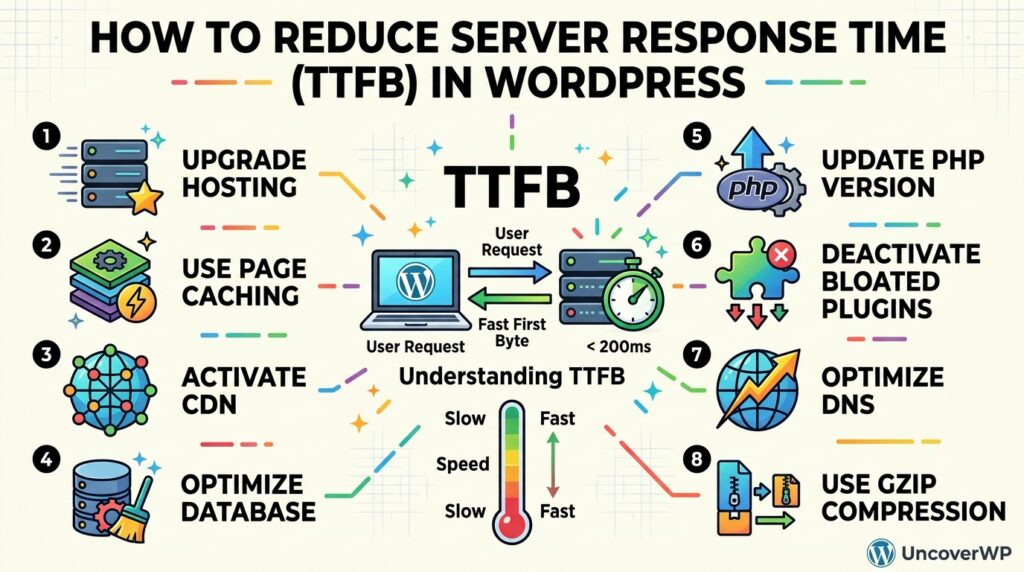
Server response time is the time a web server takes to start sending a page after a browser asks for it, measured as Time to First Byte (TTFB). On WordPress, a slow TTFB almost always means PHP and the database are rebuilding the page on every visit instead of serving a ready-made copy.
A slow server delays everything that comes after it: images, fonts, and the main content all wait for that first byte. This guide shows what a good TTFB is, how to measure it without fooling yourself, and the fixes that make the biggest difference on WordPress.
Check your TTFB first. Run your homepage through the free UncoverWP WordPress Speed Test. It shows real-visitor TTFB and flags slow server response in the fix list.
What Is a Good TTFB for WordPress?
A good TTFB is 0.8 seconds or less for real visitors. Google treats anything above 1.8 seconds as poor. In the lab test inside PageSpeed Insights, the server part alone is flagged when it takes longer than 600 milliseconds.
| TTFB (real visitors) | Rating | What it usually means on WordPress |
| 0.8 s or less | Good | Pages are served from cache on decent hosting |
| 0.8 s to 1.8 s | Needs improvement | Cache misses, slow plugins, or a busy shared server |
| Over 1.8 s | Poor | No page cache, overloaded hosting, or very slow database queries |
TTFB includes redirects, the DNS lookup, the connection, and the time your server spends building the page. TTFB is not a Core Web Vital, but it sets the floor for Largest Contentful Paint (LCP): a page cannot show its main content before the first byte arrives.
How to Measure TTFB Correctly
Measure TTFB from outside your own login session and from more than one location. Three tools cover almost every case:
- UncoverWP Speed Test: shows the TTFB of real Chrome visitors when Google has enough data, plus a lab check for slow document response.
- Chrome DevTools: open the Network tab, reload the page, click the first (HTML) request, and read Waiting for server response under Timing.
- Command line: run the command below. The number after the label is TTFB in seconds.
curl -o /dev/null -s -w “TTFB: %{time_starttransfer}\n” https://example.com/
Three Mistakes That Give You a False TTFB
- Testing while logged in. Caching plugins skip logged-in users, so your admin session always sees the slow, uncached page. Test in a private window.
- Reading only the first test. The first visit after a cache purge rebuilds the page. Run the test 2 or 3 times and use the later results.
- Testing from one place. A server in Europe can answer in 0.2 seconds locally and 1.2 seconds in Asia. Compare at least two locations.
What Causes Slow Server Response Time in WordPress?
Slow server response in WordPress comes from work the server repeats on every request. The most common causes are:
- No full-page caching, so PHP and MySQL build every page from scratch
- Shared or underpowered hosting with too few PHP workers for the traffic
- Plugins that run slow database queries or call external APIs on every page load
- Large autoloaded options in the database, often left behind by deleted plugins
- An outdated PHP version
- WP-Cron running scheduled tasks during real visits
- Redirect chains, such as http to https to www, before the page even starts
- A server far away from visitors with no CDN in front of it
How to Reduce Server Response Time in WordPress
Work through these fixes in order. The first two solve most TTFB problems on their own.
1. Turn On Full-Page Caching
Full-page caching saves a finished HTML copy of each page and serves it without running PHP or database queries, which usually cuts TTFB more than any other fix. Use the caching plugin built for your server: LiteSpeed Cache on LiteSpeed hosting such as Hostinger, or WP Rocket or your host’s built-in cache on Apache and Nginx. Run only one caching plugin, because two compete and slow the site down.
2. Add a Persistent Object Cache
A persistent object cache stores the results of database queries in memory with Redis or Memcached, so repeated queries return instantly. It matters most for pages that cannot be fully cached: logged-in users, WooCommerce carts and checkout, and the admin area. Many hosts offer Redis in the control panel; LiteSpeed Cache and the Redis Object Cache plugin connect WordPress to it.
3. Find Slow Plugins and Queries With Query Monitor
Install the free Query Monitor plugin, open a slow page, and check the Queries by Component and HTTP API Calls panels. They show which plugin runs the slowest database queries or waits on outside servers. Replace or remove the worst offender, then deactivate Query Monitor when you finish.
4. Clean Up Autoloaded Options
Autoloaded options are settings WordPress loads on every single request. Deleted plugins often leave large autoloaded data behind, and WordPress Site Health shows a warning when the total grows too big. Remove leftover options with a cleanup plugin such as WP-Optimize or Advanced Database Cleaner, and take a database backup before you delete anything.
5. Update to a Newer PHP Version
Newer PHP versions run WordPress code faster than old ones. Switch to the newest PHP version your host offers that your theme and plugins support, and test the change on a staging site first, because one outdated plugin can break on a new version.
6. Move WP-Cron to a Real Server Cron
By default, WP-Cron checks for scheduled tasks during visitor page loads, so an unlucky visitor waits while backups or emails run. Disable it in wp-config.php:
define( ‘DISABLE_WP_CRON’, true );
Then add a cron job in your hosting panel that runs every 5 minutes:
wget -q -O – https://example.com/wp-cron.php?doing_wp_cron >/dev/null 2>&1
7. Remove Redirect Chains
Every redirect adds a full round trip before the page starts loading. Link to final URLs, and make http, https, www, and non-www resolve to your main address in a single hop. Our free .htaccess Generator builds HTTPS and www rules in the right order.
8. Put a CDN That Caches HTML in Front of the Site
A CDN serves your pages from a location close to each visitor. A standard CDN only speeds up images and files; to cut TTFB worldwide, the CDN must also cache the HTML page itself, which Cloudflare APO and QUIC.cloud (for LiteSpeed Cache) do for WordPress.
9. Upgrade Hosting When Nothing Else Helps
If TTFB stays above 1 second with caching on, the server is the bottleneck. Signs of this are slow uncached pages even with few plugins, slowdowns at busy hours, and “resource limit reached” messages in your host panel. Moving to a plan with more PHP workers and dedicated resources is the fix.
TTFB Fixes Compared
| Fix | Impact on TTFB | Difficulty | Cost |
| Full-page caching | Very high | Easy | Free to low |
| Persistent object cache | High for logged-in and WooCommerce | Medium | Often free on host |
| Remove slow plugins | Medium to high | Easy | Free |
| Clean autoloaded options | Medium | Medium | Free |
| Newer PHP version | Medium | Easy | Free |
| Real server cron | Low to medium | Medium | Free |
| Remove redirect chains | Medium | Easy | Free |
| CDN with HTML caching | High for distant visitors | Medium | Free to low |
| Better hosting | Very high | Medium | Paid |
Frequently Asked Questions
[ Add a “FAQ by Rank Math” block here and add each question below as one FAQ item. ]
Is TTFB a Core Web Vital?
No. The Core Web Vitals are LCP, INP, and CLS. TTFB still matters because a slow first byte delays LCP, which is a Core Web Vital.
Why is my TTFB fast for me but slow in PageSpeed Insights?
You are probably testing while logged in, from a location close to your server, or after the page was already cached. PageSpeed Insights tests from Google’s servers, so distance and cache misses show up there.
Why is TTFB slow only on the first visit?
The first visit after a cache purge builds the page and stores it. Later visits get the cached copy. Turn on cache preloading in your caching plugin so pages are rebuilt before visitors arrive.
Does a caching plugin fix TTFB on every page?
No. Pages for logged-in users, carts, checkout, and URLs with some query strings are usually not cached. A persistent object cache and faster hosting help those pages.
Can a CDN reduce TTFB without caching HTML?
Only a little. A CDN that serves just images and files shortens the connection time but still waits for your server to build the page. HTML caching at the CDN removes that wait.
What is the difference between TTFB and server response time?
Server response time is the time your server spends building the page. TTFB adds redirects, DNS lookup, and connection time on top of it, so TTFB is always a little higher.